How to send structured logs to Seq and Application Insights? - Part 7
How to send structured logs to Seq and Application Insights with Serilog, how the properties appear in each, and when to use which.
How to send structured logs to Seq and Application Insights? - Part 7
Writing good structured logs is half of the job, the other half is to put them where the people can query them. Application Insights is our log store, and it gives us the correlation with requests, dependencies and exceptions. Seq is a log server which is built for structured events, and many developers like its search experience. The good news is that Serilog can write to both at the same time, without any change in the business code. In the previous articles, we discussed what is structured logging, how to write it and two use cases. In this last article, we are going to see how to configure Serilog with the Seq and Application Insights sinks, how the properties appear in each of them, and when to use which one.
TL;DR Summary
- Serilog sends the same log event to many sinks. Add the Seq sink and the Application Insights sink in the startup, the business code stays the same.
- In Application Insights, the structured log is stored in the
tracestable, and the properties are incustomDimensions. - In Seq, the properties are stored with the event, and we can filter on them directly by the property name.
- Use Seq for the local development and the test environments to explore the logs quickly. Application Insights is the log store for the production, with the sampling and the retention rules we defined.
- The sampling of Application Insights applies to the traces. The sensitive data rules apply to both of the sinks, so mask before logging.
What are the two sinks for?
| Application Insights | Seq | |
|---|---|---|
| What it is | The APM service and the log store on Azure | A log server for structured events with a search UI |
| Strength | Correlation with requests, dependencies and exceptions, alerts, dashboards, Kusto queries | Fast and friendly search on the properties, good for exploring |
| Query | Kusto, on the traces table and customDimensions | Filter expressions on the property names, and SQL-like queries |
| Cost and volume | Cost is based on the data ingestion, sampling is applicable | Runs where you host it. Check the license terms for your usage |
| Our recommendation | Production and all the other environments | Local development and the test environments |
Note: Seq is not part of our original guideline, where Application Insights is the log store. Treat Seq here as a developer tool, which helps to see the structured logs while the code is being written. Agree with your team before you run it as a shared service.
The following diagram depicts the setup. The business code writes one log statement with ILogger, and Serilog sends it to both the sinks,
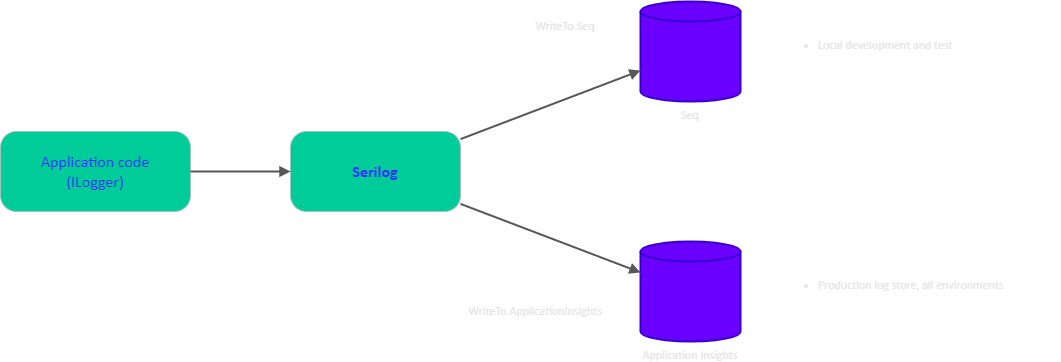
How to configure Serilog with both sinks?
Steps to Implement:
Follow the following instructions to send the logs to both the sinks,
- Add the NuGet packages for the Serilog integration with
Microsoft.Extensions.Logging(for ASP.NET Core,Serilog.AspNetCore),Serilog.Sinks.SeqandSerilog.Sinks.ApplicationInsights. - Configure Serilog once, in the startup of the application. Replace the input place holders with the actual values,
Log.Logger = new LoggerConfiguration()
    .MinimumLevel.Information()
    .Enrich.FromLogContext()
    .Enrich.WithProperty("Application", "<ApplicationName>")
    .WriteTo.Seq("<SeqServerUrl>")
    .WriteTo.ApplicationInsights(telemetryConfiguration, TelemetryConverter.Traces)
.CreateLogger();- In ASP.NET Core, tell the host to use Serilog,
Host.CreateDefaultBuilder(args)
    .UseSerilog()
.ConfigureWebHostDefaults(webBuilder => webBuilder.UseStartup<Startup>());- Write the logs only with
ILoggerofMicrosoft.Extensions.Logging, as we discussed in the Part 3.
Let us see what these lines are doing,
| Line | What it does |
|---|---|
MinimumLevel.Information() | Information is the default minimum level. Don’t go below it if you want to log the traces |
Enrich.FromLogContext() | Adds the properties of the scopes (BeginScope) and the log context to every event |
Enrich.WithProperty("Application", ...) | Adds a fixed property to every event, so we know which application wrote it when many applications share a sink |
WriteTo.Seq(...) | Sends the events to the Seq server |
WriteTo.ApplicationInsights(..., TelemetryConverter.Traces) | Sends the events to Application Insights as traces |
Info: Our internal logging package has extension methods to simplify the Serilog configuration. Use them when they are available for your framework, instead of writing the configuration by hand.
How to run Seq on your machine?
For a quick start, Seq can run in a container on your machine,
docker run -d --name seq -e ACCEPT_EULA=Y -p 5341:80 datalust/seqThen use http://localhost:5341 as the <SeqServerUrl>. The same address opens the Seq UI in the browser.
Note: For a quick start, a local container is fine. For a shared server, think about the retention, the access and the license before you use it.
Different sinks for different environments
It is not necessary that all the environments send to all the sinks. A simple approach is,
| Environment | Application Insights | Seq |
|---|---|---|
| Local development | Optional | Yes |
| Dev, QA and UAT | Yes (the pre-production instance) | If your team runs one |
| Production | Yes (the product family instance) | No, unless approved |
Read the sinks and the server addresses from the configuration of each environment, and don’t hard code them.
How do the properties look in each sink?
Take the log statement of the mutual fund use case,
_logger.LogInformation("Share class {ShareClassId} of sub-fund {SubFundId} of fund {FundId} was requested",
    shareClassId, subFundId, fundId);
In Application Insights, it is a record in the traces table. The rendered message is in the message column, and the properties are in customDimensions, so we query them like this,
traces
| where timestamp >= ago(1h)
| where customDimensions.ShareClassId == "SC001"
| order by timestamp asc
In Seq, the event is shown with its rendered message, and the properties are listed with the event. We filter by typing the property name and the value,
ShareClassId = 'SC001'The properties come from the same log statement, so the same questions can be asked in both places. This is the real value of the structure. We don’t write the logs twice.
Correlation and the operation id
The correlation properties which we add with BeginScope (like OrderId or ClientId) are stored as the properties in both the sinks. In Application Insights, each request also has an operation id, which is the correlation id we show in the custom error page (refer the Part 4). Use this id to jump from the error page of the user to all the log entries of that request, and then use the business properties to find the related entries of the same transaction.
What should we be careful about?
- Sampling. The traces which go to Application Insights are subject to the sampling rate. Seq receives what you send, unless you filter it. If the numbers in both places are different, check the sampling first.
- Sensitive data. Both the sinks store the properties, so the mask, hash and encrypt rules of the Part 4 are applicable. Mask before you write the log, not after.
- Volume and cost. Every extra property is stored with every event. Log what you will query.
- Don’t change the code for the sink. If you find yourself writing Seq or Application Insights specific code in the business layer, stop. It belongs to the startup.
Just to pulse check
Run the application locally, perform one request, and then check three things,
- The event is visible in Seq, and you can filter it by one of your properties.
- The same event is visible in the
tracestable of Application Insights after a few minutes, with the properties incustomDimensions. - A parameter-order mistake or a string interpolation is not hiding any property. Open an event and verify that the properties are present with the right values.
Wrap up
In this article, we have looked at what Seq and Application Insights are for, how to configure Serilog to write to both of them, how the properties appear in each one, and the points to be careful about. Over the seven articles, we covered why we need structured logging, what it is, how to write it, how to correlate the entries, handle the exceptions and protect the sensitive data, two use cases from the e-commerce and the mutual fund worlds, and the integration with Seq and Application Insights. I hope this series provided you some insights into structured logging. I appreciate your time and efforts to read these articles.
Related Posts
How to correlate logs, handle exceptions and protect sensitive data? - Part 4
How to correlate log entries with properties or BeginScope, decide between Fatal and Error, handle exceptions and log sensitive data safely.
How to use structured logs in e-commerce? A worked example - Part 5
A worked e-commerce checkout example with agreed property names, BeginScope, log levels by failure and the queries which answer support questions.
How to use structured logs in the mutual fund world? Clients, funds and indices - Part 6
How to log which client of which product views which fund, sub-fund and share class, and which internal service uses which index.