How to create an AKS cluster? (preview)
This guide creates an AKS preview cluster, covering resource groups, regions, managed masters, agent nodes, networking, credentials and the first application deployment.
How to create an AKS cluster? (preview)
A Kubernetes cluster needs a control plane, agent nodes, networking and credentials before an application can run. Building all these pieces by hand is creating a large operational task, especially for a team which only wants to deploy a fund API and keep its focus on the business. Azure Container Service (ACS) already provides a managed Kubernetes option, and Azure Kubernetes Service (AKS) is arriving as a preview with a simpler managed control plane.
In this article, we are going to see how to register the provider, create an AKS preview cluster, install the command-line tools, retrieve credentials, deploy a sample workload and scale the agent nodes. We will also compare the preview experience with ACS.
TL;DR Summary
- AKS is a preview managed Kubernetes service with managed masters.
- Register
Microsoft.ContainerService, create a resource group and runaz aks create. az aks get-credentialsconfigureskubectlfor the cluster.- Use
kubectl get nodesas the pulse check before deploying an application. - You pay for agent nodes while the managed masters are provided by the service.
- Preview regions and CLI behaviour must be confirmed before automation.
Challenges
Cluster control-plane work
The Kubernetes masters are responsible for the API, scheduling and cluster state. Running them ourselves means maintaining availability, upgrades and certificates before the first application is deployed.
First deployment confidence
A cluster can be created successfully while agent nodes are not ready or credentials are pointing to a different context. The first kubectl get nodes pulse check is important before applying a workload.
Preview limits
AKS is in preview and available only in selected regions. The preview does not provide every later platform integration, so the team must understand which controls are managed and which remain with the application owner.
What is AKS?
Azure Kubernetes Service is a preview Azure service which manages Kubernetes master components while the customer pays for and manages the agent nodes.
In simple terms, AKS is providing the Kubernetes control plane as a service. We still choose node count, node size, workload manifests and application operations, but we do not maintain the master virtual machines.
The following diagram depicts the managed AKS masters and the agent nodes owned by the application team.
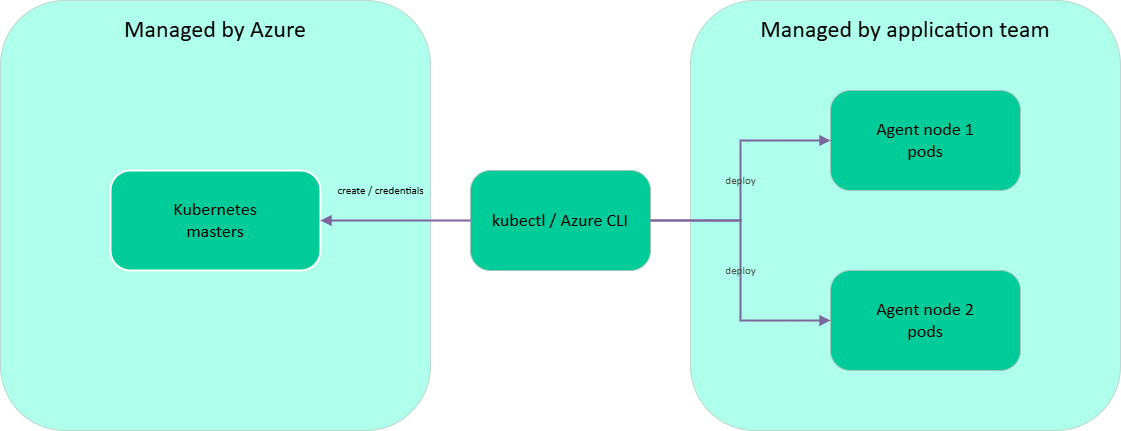
The purple path is the cluster creation and credentials path. The master is managed by Azure, while the teal agent nodes are where the application pods are running and where compute cost is incurred.
Why AKS is important?
AKS is important because it is reducing the control-plane management required to run Kubernetes. A team can focus on node capacity, application health and deployment instead of patching the Kubernetes masters.
The preview is not a reason to move every workload. Compare the region, networking, security and operational requirements with ACS, and keep a fallback plan for a service which is not yet offering the required capability.
The managed-master boundary does not remove responsibility for node patching, pod resource requests, network rules or application monitoring. Define these responsibilities before creating the cluster, otherwise the team may assume that a managed master also means a managed application.
Option comparison
| Approach | Pros | Cons |
|---|---|---|
| AKS preview | + Managed masters + Azure CLI workflow + Pay for agent nodes | − Preview regions and features − Some later platform integrations are unavailable |
| ACS Kubernetes | + Existing Azure Kubernetes service + More established workflow | − More cluster management responsibility − Master and agent capacity planning |
Steps to Implement:
Follow the following instructions to create an AKS preview cluster,
Register the provider
-
Sign in and select the subscription,
az login az account set --subscription <subscription-id> -
Register the container service provider,
az provider register -n Microsoft.ContainerService
Replace the input place holders with actual values.
Check the preview region
- Select one of the documented preview regions such as East US, West Europe, Central US, Canada Central or Canada East.
Note:
[confirm: AKS preview regions]Confirm the available regions from the Azure portal or current CLI response before using the value in a deployment script.
Create the resource group and cluster
-
Create a resource group,
az group create \ --name <resource-group> \ --location <region> -
Create a one-node preview cluster,
az aks create \
  --resource-group <resource-group> \
  --name <cluster-name> \
  --node-count 1 \
  --generate-ssh-keys
The first cluster can use one node for a pulse check. Select a suitable VM size and node count for a real workload after measuring the pod resource requests.
Install kubectl and credentials
-
Install the Kubernetes command-line tool,
az aks install-cli -
Download credentials into the local kubeconfig,
az aks get-credentials \ --resource-group <resource-group> \ --name <cluster-name> -
Check the nodes,
kubectl get nodes
Info: The node should become
Readybefore applying an application manifest. If another cluster context is configured locally, inspect it before running commands.
Deploy a sample application
-
Create a Deployment with the 2017 API version,
apiVersion: extensions/v1beta1 kind: Deployment metadata: name: fund-api spec: replicas: 1 template: metadata: labels: app: fund-api spec: containers: - name: fund-api image: <registry>/<fund-api>:<tag> ports: - containerPort: 80 -
Apply it with
kubectl create -f,kubectl create -f fund-api.yaml kubectl get pods -
Expose the sample with a Service and wait for its address,
kubectl expose deployment fund-api \
  --type=LoadBalancer \
  --port=80
kubectl get service --watch
Check the external IP and call the health endpoint. Do not consider the deployment complete until a pod is ready and the Service responds.
Scale and upgrade
-
Scale the agent nodes,
az aks scale \ --resource-group <resource-group> \ --name <cluster-name> \ --node-count 2 -
Upgrade the cluster when the preview supports the target version,
az aks upgrade \ --resource-group <resource-group> \ --name <cluster-name> \ --kubernetes-version <version> -
Open the cluster dashboard through the CLI,
az aks browse \
  --resource-group <resource-group> \
  --name <cluster-name>
Review the application upgrade and node-drain behaviour before using an upgrade command in a production-like environment.
Pulse check and Helm
-
Check nodes, pods and services,
kubectl get nodes kubectl get pods kubectl get service -
Continue with the Helm chart workflow from the next Cloud How-to article when the cluster is ready.
Helm works with AKS in the same way as with ACS Kubernetes. Refer the Helm article for chart packaging and release commands.
Must Do / Should / Don’t
Must Do
- Must confirm the preview region before creating the resource group.
- Must register the provider and check that the node is
Ready. - Must retrieve credentials and inspect the active Kubernetes context.
- Must use the cluster API version supported by the preview cluster.
Should
- Should start with one node for a pulse check and scale after measuring capacity.
- Should compare AKS with ACS before moving an existing workload.
- Should keep application manifests and node scaling under source control.
Don’t
- Don’t assume the preview has every later platform integration.
- Don’t expose a service before checking authentication and network rules.
- Don’t apply a deployment before
kubectl get nodesshows a ready agent.
Wrap up
In this article, we have looked at AKS preview regions, provider registration, cluster creation, credentials, kubectl, a sample deployment, scaling and managed masters.
I really appreciate that you took the time to read this article. In the next article, I will walk you through how to choose a Cosmos DB consistency level and partition key.
Related Posts
Cloud cost optimization - right-sizing, reserved capacity and auto-shutdown
Azure cloud cost optimisation combines right-sizing, reserved capacity, auto-shutdown, autoscale, tagging, cleanup, Advisor metrics and showback into a repeatable loop.
Cosmos DB vs Azure SQL Database - choosing the right data store
Cosmos DB and Azure SQL Database are compared across data models, consistency, transactions, partitioning, scale and operational fit for a fund workload.
Environment drift - why UAT and production are not the same
Environment drift makes UAT and production behave differently, so this article explains how to control configuration, infrastructure, access policies and deployment evidence.