How to deploy an application to Kubernetes with Helm charts?
Helm charts package Kubernetes manifests into repeatable releases, with this guide covering chart structure, values, templating, Tiller, installation, upgrades and rollback.
How to deploy an application to Kubernetes with Helm charts?
Kubernetes gives us a powerful API for deploying applications, but writing every Deployment, Service and configuration value by hand is becoming repetitive. A fund API may need the same deployment shape in development, UAT and production, with only image tags and resource values changing. Helm is providing a package and release workflow over the Kubernetes API.
In this article, we are going to see how to install Helm 2.6 on a Kubernetes cluster running in Azure Container Service (ACS), create a chart, install it through Tiller, and upgrade or roll back the release. The examples use the Kubernetes API version supported by this cluster.
TL;DR Summary
- Helm packages Kubernetes resources into a chart with
Chart.yaml,values.yamlandtemplates/. - Helm 2.6 uses a client and a server-side Tiller component.
- Create a chart with
helm create, install it withhelm install --name, and inspect it withhelm ls. - Use
helm upgradeandhelm rollbackto manage a release history. - The deployment template uses
extensions/v1beta1for this cluster version. - Keep secrets out of values files and review rendered templates before installing.
Challenges
Repeated YAML
Every application needs a Deployment, Service and environment-specific values. Copying these files for every fund service is making changes inconsistent and code review difficult.
Configuration across environments
The image tag, replica count and service type can change between development and production. Editing the same YAML by hand is increasing the chance of deploying the wrong value.
Safe release changes
A deployment tool must provide a history, upgrade path and rollback option. Without a release record, a failed image update is becoming a manual incident.
What is Helm?
Helm is a package manager for Kubernetes applications. A Helm chart contains templates and default values, and a release is an installed instance of that chart.
In simple terms, Helm is allowing us to keep one application package and supply different values for each environment. Helm 2.6 uses the Helm client locally and Tiller inside the Kubernetes cluster.
The following diagram depicts the Helm client, Tiller and Kubernetes API flow.
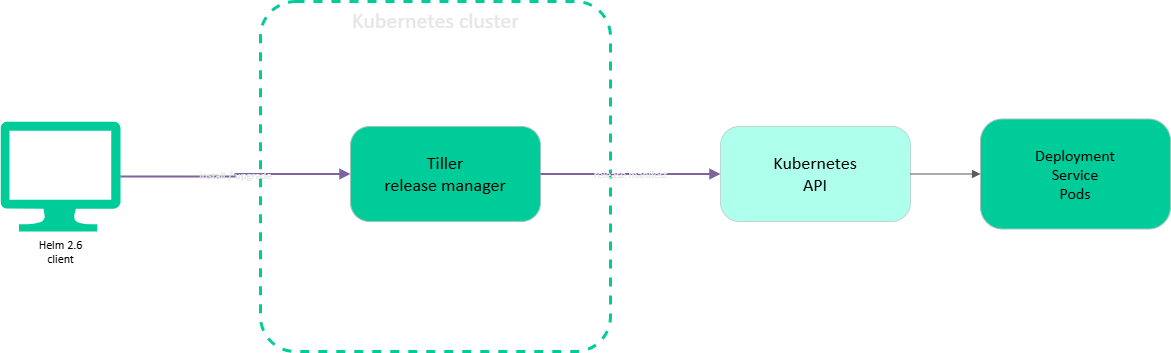
The purple path is the install flow from the Helm client through Tiller to the Kubernetes API. Tiller creates and tracks the Kubernetes resources which belong to the release.
Why Helm is important?
Helm is important because it is bringing repeatability to Kubernetes deployment. A chart can be reviewed, versioned and installed with one command, while values can describe the differences between environments.
Helm is not removing the need to understand Kubernetes. The generated resources are still running in the cluster, so the team must review the templates, permissions, probes, resource limits and service exposure.
Option comparison
| Approach | Pros | Cons |
|---|---|---|
| Raw Kubernetes manifests | + Direct and transparent + No additional package server | − Repeated YAML − Environment values are harder to manage |
| Helm chart | + Templates and values + Release history and rollback | − Tiller requires cluster permissions − Another tool to operate |
Steps to Implement:
Follow the following instructions to deploy the fund API with Helm,
Create or access an ACS Kubernetes cluster
-
Create an ACS cluster with the Kubernetes orchestrator,
az acs create \ --resource-group <resource-group> \ --name <cluster-name> \ --orchestrator-type kubernetes \ --master-count 1 \ --agent-count 2 \ --generate-ssh-keys -
Download credentials,
az acs kubernetes get-credentials \
  --resource-group <resource-group> \
  --name <cluster-name>
Replace the input place holders with actual values. A cluster may already exist, in which case start with the credentials step.
Install Helm 2.6
-
Install Helm 2.6 on the client machine and check the version,
helm version -
Initialise Tiller in the cluster,
helm init
Note: Helm 2.6 uses Tiller. Keep the client and Tiller versions compatible, and restrict the service account permissions in a production cluster.
Create the chart
-
Create a chart skeleton,
helm create fund-api -
Review the generated structure,
fund-api/
  Chart.yaml
  values.yaml
  templates/
Chart.yaml contains chart metadata, values.yaml contains defaults and templates/ contains Kubernetes resource templates. Remove example resources which are not required by the fund API.
Validate and package the chart
-
Validate the chart structure before installing,
helm lint ./fund-api -
Package a versioned chart for the internal chart repository,
helm package ./fund-api -
Keep the chart version and application image tag separate. The chart version is describing the deployment package, while the image tag is describing the application build.
This validation is giving us a fast feedback before Tiller receives a release. It is not replacing a cluster test, because a rendered manifest can still fail due to a missing Service, an unavailable image or a resource limit which is too small.
Add the deployment template
-
Set the API version and values in
templates/deployment.yaml,apiVersion: extensions/v1beta1 kind: Deployment metadata: name: {{ .Release.Name }} spec: replicas: {{ .Values.replicaCount }} template: metadata: labels: app: {{ .Release.Name }} spec: containers: - name: fund-api image: "{{ .Values.image.repository }}:{{ .Values.image.tag }}" ports: - containerPort: 80 resources: limits: cpu: {{ .Values.resources.limits.cpu }} memory: {{ .Values.resources.limits.memory }} -
Run a local template check,
helm template ./fund-api
The API version is extensions/v1beta1 for this cluster. Do not copy a newer Kubernetes API version into this deployment.
Install the release
-
Install the chart with a release name and image tag,
helm install --name fund-api ./fund-api \ --set image.tag=<tag> -
Check the release and Kubernetes resources,
helm ls
kubectl get deployments
kubectl get pods
kubectl get services
Upgrade and rollback
-
Upgrade the image or replica value,
helm upgrade fund-api ./fund-api \ --set image.tag=<new-tag> \ --set replicaCount=2 -
Check the release history,
helm history fund-api -
Roll back to an earlier revision when the health check fails,
helm rollback fund-api <revision> -
Remove the release and its resources when the experiment is complete,
helm delete fund-api --purge
Pulse check
-
Wait for the pods to be ready,
kubectl get pods --watch -
Call the Service endpoint and check one fund response.
-
Review pod logs and the Helm release status before calling the deployment successful.
Info: Values are inputs, not secrets storage. Use a protected process for credentials and review the rendered manifest before installing.
Keep the chart directory independent from the application source where possible. The chart is describing how to run the image, while the application repository is producing the image. This separation allows the same chart to deploy a tested image to several environments without changing the application binaries.
Must Do / Should / Don’t
Must Do
- Must review
helm templateoutput before installing. - Must set image tags and resource limits explicitly.
- Must keep Helm client and Tiller versions compatible.
- Must test
helm rollbackbefore relying on it during an incident.
Should
- Should keep environment-specific values in separate files or protected pipeline inputs.
- Should define readiness and liveness checks for the API.
- Should use a restricted Tiller identity.
Don’t
- Don’t put passwords in
values.yaml. - Don’t use a newer Kubernetes API version in the cluster.
- Don’t assume a successful Helm command means the pods are healthy.
Wrap up
In this article, we have looked at ACS Kubernetes credentials, Helm 2.6, Tiller, chart structure, deployment templates, installation, upgrade and rollback.
Thanks for reading this article. In the next article, I will walk you through how to use Managed Service Identity to access Key Vault without secrets.
Related Posts
Kubernetes on Azure - ACS vs AKS (preview) vs ACI
ACS, AKS preview and ACI provide different Azure container operating models, and this article compares ownership, control, cost, scheduling and workload fit.
What is resiliency and why do we need a DR strategy? - Part 1
What resiliency is, why we need a DR strategy, how high availability, disaster recovery and backup differ and the principles we follow.
Cloud cost optimization - right-sizing, reserved capacity and auto-shutdown
Azure cloud cost optimisation combines right-sizing, reserved capacity, auto-shutdown, autoscale, tagging, cleanup, Advisor metrics and showback into a repeatable loop.