Postman Environments
Postman environments let us keep one request template for local, dev, qa and production by moving host names and API keys into environment variables, instead of duplicating collections.
Postman Environments
Introduction
Postman is one of the most popular REST client which provides complete workflow to develop and test the REST based APIs. Postman provides lots of features and in this article, we are going to look at one of the powerful feature called Environments.
What is Postman Environment?
When we want to manage API requests for different environments then we need to create separate postman collection for different environments and it more painful when no of requests grow and when we want to change the existing request details for all environments. Fortunately, Postman environment feature resolve all above maintenance issues and it help us to create request template which can be used across multiple environments (i.e. dev, qa and production) without creating a separate collection for each.
Variables
Postman supports the variable concept and we can use variables to dynamically pass the values in a API request at runtime. Postman variables are enclosed with double curly braces as shown below,
{{variable}}Example:
https://{{host}}:{{port}}/api/user/{{userid}}Postman uses the variables in Environment feature to create environment specific variables and request templates.
Postman Client
Postman client comes with two flavors, one is chrome addon and another one is desktop app. There are few UI differences between these two clients and I am going to use desktop app in this post so for better understanding I am recommending you use desktop client but it is not mandatory still, you can use the chrome addon to follow this article.
If you not installed the postman client then you can download from here https://www.getpostman.com.
Manage Environments
In this section, we are going to see how we can manage environment specific variables and create a API test request template which can be used across multiple environments.
Follow the following steps to manage environment variables,
-
Open the postman. Once it opens, you can find a little cog/settings icon at the top right-hand side and this is the entry point for managing environments. Click on environment settings icon then select the Manage Environments.
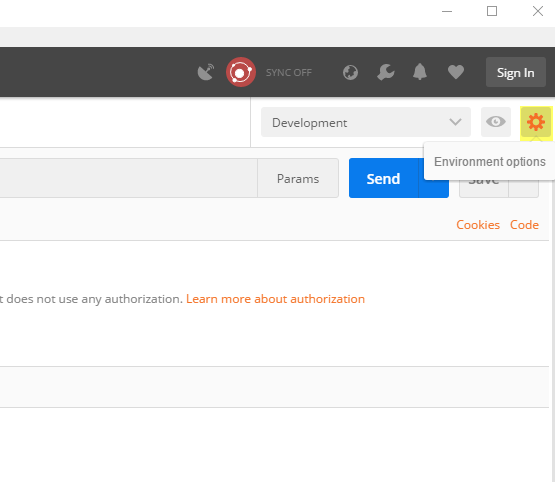
Environment options (cog) icon at the top right of Postman -
Now, environment list popup will open and it will show an empty list if you are opening for first time.
-
Click on Add button which available at right bottom. It will bring the environment configuration page.
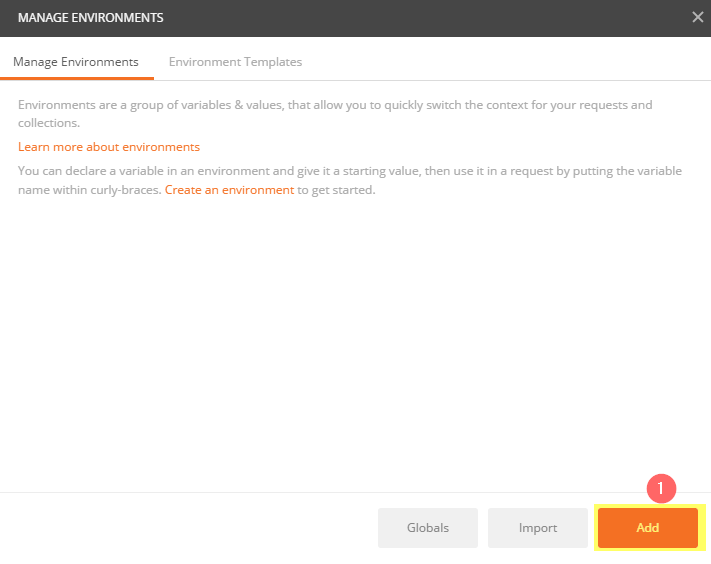
Manage Environments popup with the Add button highlighted -
Enter the environment name.
-
Create required variables for different environments. For example, your API has four different environments (i.e. local, dev, qa and production) and each has different host name and API key.
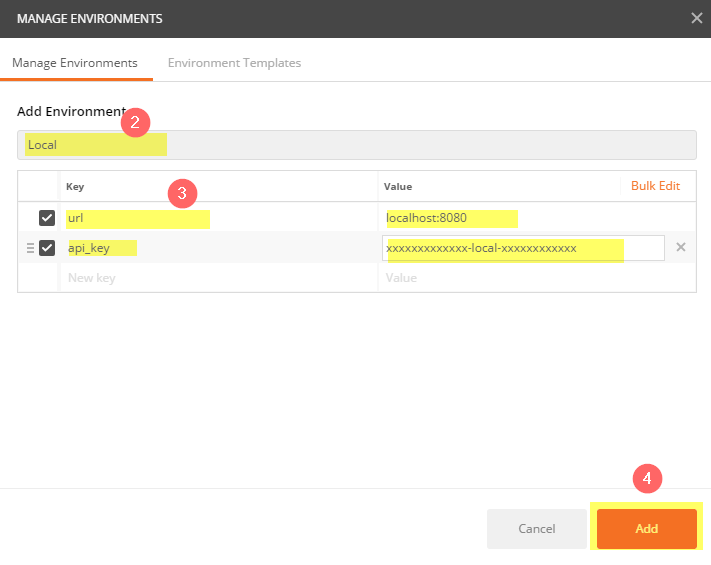
Add Environment page with the Local environment variables - Enter the environment name as Local
- Add url in the row 1 key field and enter localhost:8080 in the value field
- Add api_key in the row 2 key field and enter xxxxxxxxxxxxxxxxxxx in the value field
-
Once enter all required data for specific to local environment, click on Add button to create new environment.
-
Now, it will list the newly added environment and anytime you can come back here and rename your environment or change the variables.
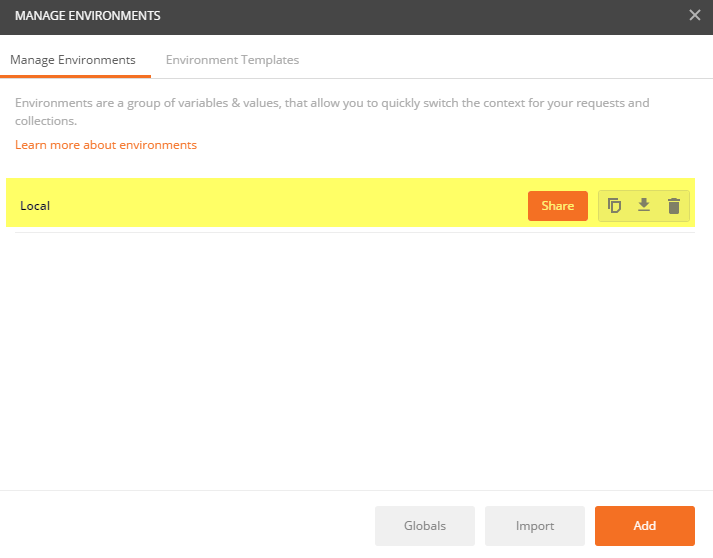
Environment list showing the newly added Local environment -
Postman provides an option to take a copy of existing environment to create a new one without creating it from the scratch.
-
Duplicate the newly created environment and update all variables for other environments like dev, qa and production. Make sure all variable names must be same across all environments otherwise it will not work.
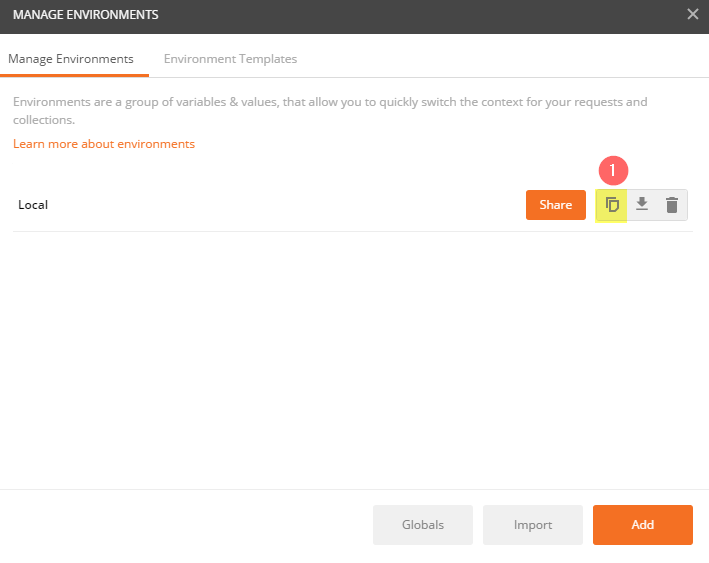
Duplicate environment icon highlighted 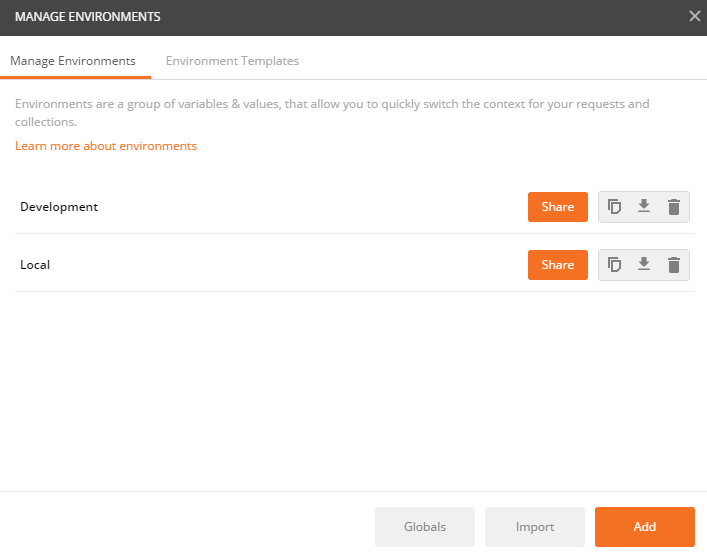
Environment list showing Development and Local environments -
Close the popup once you configured all environments.
Now, you are ready to create the request template with newly created environments. Assume that you are going to create a postman request to get the list of users from the account API and its URI is account/list. All API requests required API key in the header and host name in the url, for local environment it look like this http://localhost:8080/account/list.
httpbin.org:
Httpbin.org simply echo a http request and request related information like user agent, IP, etc. in the http response and it will help us to debug a http request. Here, I used the httpbin.org to demonstrate how postman transform a request template in to actual request for a specific environment.
Follow the following steps to use the environment specific data in a request.
-
Choose the Local from the Environment dropdown (which is available near to Environment setting icon).
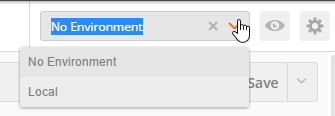
Environment dropdown with the Local environment -
Create the new request with environment specific variables.
-
Type
https://httpbin.org/get?url=http://{{url}}/account/listin the url field and type{{now you can see the variable autocomplete window and choose the url field or type url variable name exactly how you given in the environment.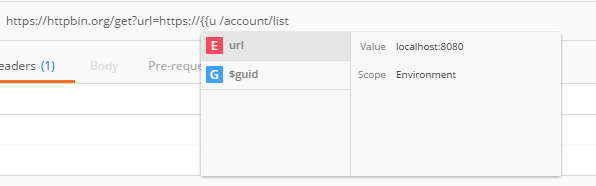
Variable autocomplete for url in the request URL field -
Add a new header for API key. Type x-api-key in key field and
{{api_key}}in value field.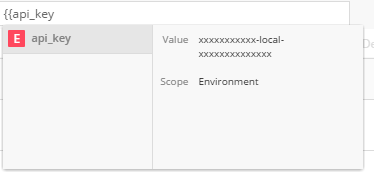
Variable autocomplete for api_key in the header value field 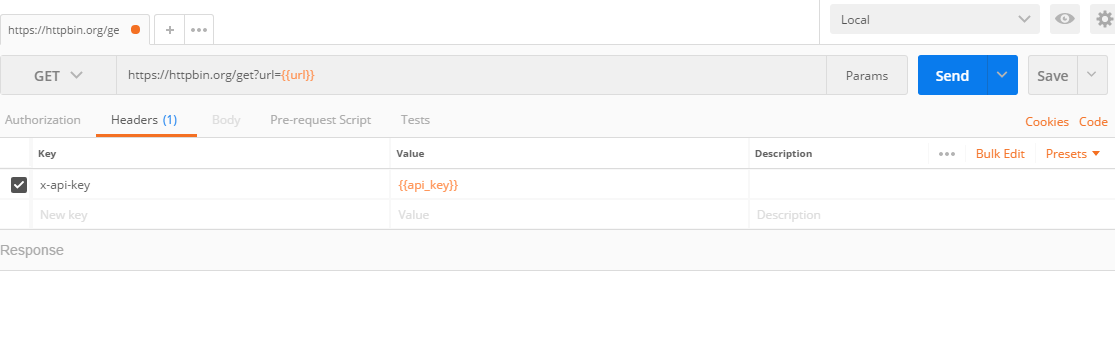
Request with the x-api-key header using the api_key variable -
Click on send button to send the request to httpbin.org.
-
Once response is back from httpbin.org, you can see the url and api_key variables were filled specific to Local environment.
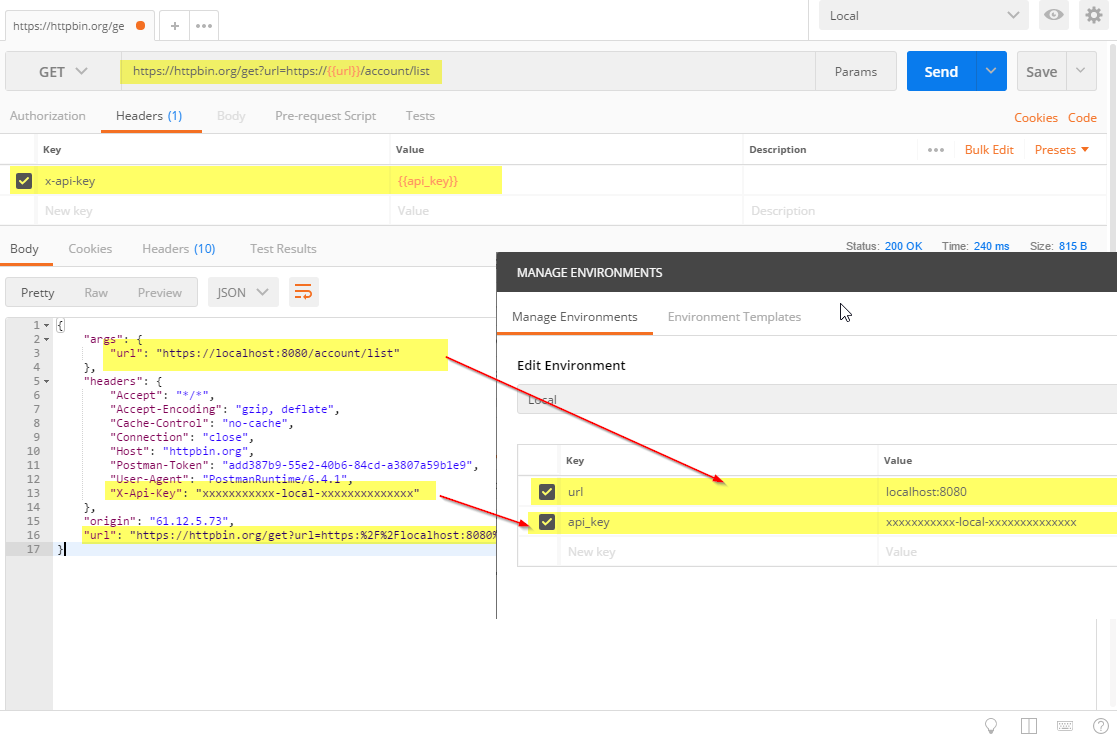
httpbin.org response showing the Local environment url and api_key values -
Now, change the environment to development and click on send button. That is it! Now, you are in different environment.
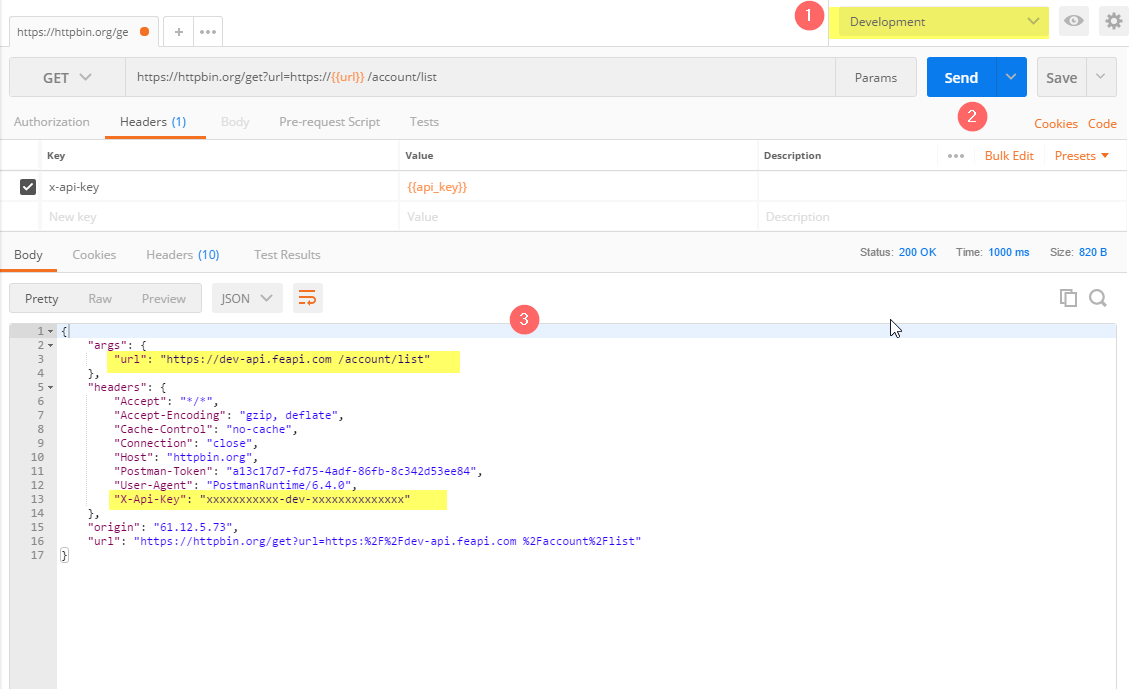
httpbin.org response after switching to the Development environment
Postman Environment feature made our life easy, we can jump into different environment by simply changing the environment dropdown.
Conclusion
In development world, maintenance is the most important quality factor, so wherever it possible we need to improve and postman environment feature help us to effectively maintain our API test requests for different environment.
Related Posts
How to automate API tests with Postman Scripts? - Part 2
Automate API tests with Postman scripts: prepare test cases and data, write tests for real examples and run them with the Collection Runner.
How to write Postman Scripts? - Part 1
The basics of Postman scripts: when pre-request and test scripts run, the execution order, the Postman Sandbox and how to write a first script.
What is contract testing and why do we need it? - Part 1
What an API contract is, why we need contract testing, how it fits with unit, integration and end-to-end tests, and provider-driven versus consumer-driven approaches.