How to automate API tests with Postman Scripts? - Part 2
Automate API tests with Postman scripts: prepare test cases and data, write tests for real examples and run them with the Collection Runner.
How to automate API tests with Postman Scripts? - Part 2
Introduction
In the previous article, we discussed the basics of Postman scripts: what a Postman script is, the script execution order, the Postman Sandbox and how to write a Hello World script. In this article, we are going to see how to automate the API tests with Postman using two real world examples, and how to run them with test data in the Postman Collection Runner.
TL;DR Summary
- Prepare the test cases first and then the test data; otherwise your tests will become more data-centric than test case-centric.
- Use one request per API function and write the test cases in its Tests script tab.
- Use environment variables for environment specific values and a CSV file for test data.
- Use the Collection Runner to run a collection or folder with a test data file, one iteration per row.
- Follow the best practices: proper folder structure, readable names, one assert per test and start with red.
How to write an API automation test?
Before start writing our automated tests, we should prepare the necessary test cases and then the test data. Please do not change the order. Sometimes people will prepare the test data and then start writing test scripts directly; this will turn your tests more data-centric than test case-centric.
In this article, we are going to write automated tests for two scenarios,
- ZYX Commerce - A simple product API which you can run on your machine. It is a good place to start with for beginners.
- Fund List with Azure Search - A real time example from our work, where we test the data returned by an Azure Search index with environment variables and test data.
Example 1: ZYX Commerce
Scenario
ZYX Commerce is an e-commerce service provider and they have an end-to-end API to build or manage any e-commerce solution. You are working as part of the API development team in ZYX Commerce. Your role is to create automation tests for the API with Postman. Let us assume the ZYX Commerce API has the following API functions and you are going to write automation tests for them.
API functions:
| Function | Uri |
|---|---|
| Get the available product list | products |
| Get the product details for a given product | products/:id |
Run the API
The attachment contains the ZYX Commerce API (ZYX Commerce/API), the Postman collection (ZYX Commerce.postman_collection.json) and the test data (ProductList.csv). Follow the following steps to start the API server,
-
Install the latest node.js and npm if you have not already installed them.
-
Open the command prompt in Windows or terminal in Linux/Mac.
-
Navigate to the
ZYX Commerce\APIfolder from the attachment. -
Type the following command and press enter. It will restore all required packages to run the API.
npm install -
Type the following command and press enter. It will start the API server at
http://localhost:8081.npm run serve
Steps
Follow the following steps to write the automation tests for the above API functions.
-
Prepare the test cases for the above functions. Few test cases as follows,
- Test cases for product list
- API should return JSON response
- API should return 200 status code
- API should return data array in the response with more than one item
- Test cases for product detail
- API should return JSON response
- API should return 200 status code for matched product id
- API should return product details for given product id
- Test cases for product list
-
Prepare the test data. Product list does not require any test data since it is going to return the available products. Product detail function requires test data to check whether it returns the expected data or not. Refer to the attachment which contains the test data csv file (
ProductList.csv).Id,Name,Price 11,Variable demo product,0 15,Test product,99.36 29,Apple iPhone 6 [demo],500 ... -
Create a request for each API function. Refer to the attachment which contains the Postman collection with two requests.
- Product List -
http://localhost:8081/products - A Product Details -
http://localhost:8081/products/{{Id}}. Here,{{Id}}will be replaced with theIdcolumn of the test data at runtime.
- Product List -
-
Write your test scripts to pass your test cases.
-
Open the product list request, then go to the Tests script tab and type the following scripts,
pm.test("product list api should return json body", function () \{ //Assert pm.response.to.have.jsonBody(); }); pm.test("product list api should return 200 status code", function () \{ //Assert pm.response.to.be.ok; }); pm.test("product list api should return array of product items", function () \{ //Arrange var response = pm.response.json(); //Assert pm.expect(response.data).to.be.an('array'); }); pm.test("product list api should return one or more items", function () \{ //Arrange var response = pm.response.json(); //Assert pm.expect(response.data.length).to.above(1); }); -
Before testing, ensure you have started the API server (refer to the Run the API section).
-
Click on the Send button. Once the response is returned, you can see the test results in the test results tab.
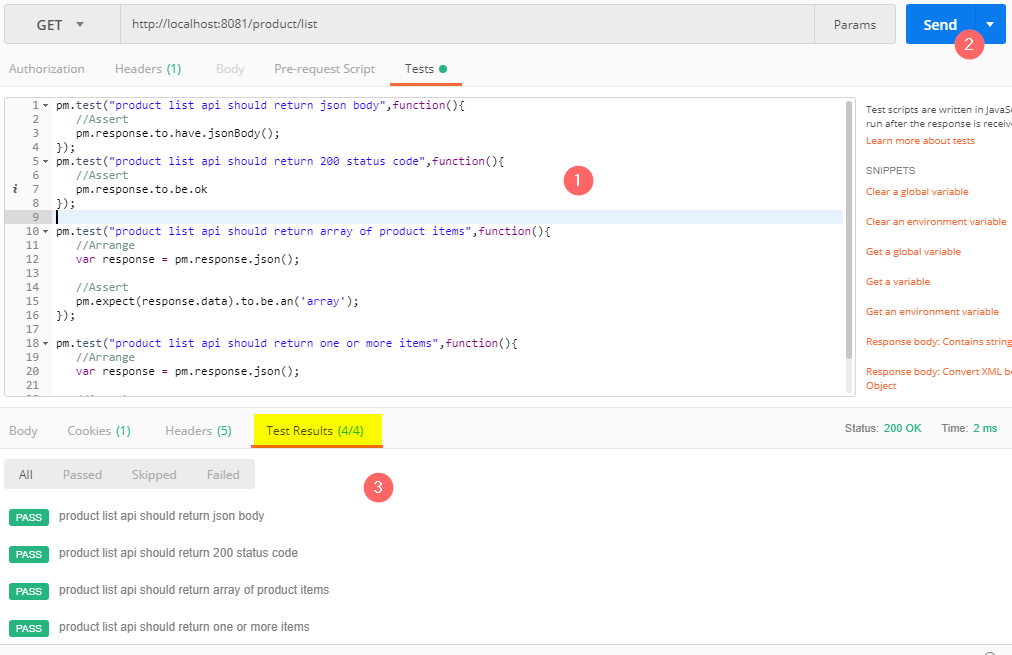
Product list request with all four tests passed -
Open the product details request, then go to the Tests script tab and type the following scripts,
pm.test("product details api should return json body", function () \{
    //Assert
    pm.response.to.have.jsonBody();
});

pm.test("product details api should return 200 status code", function () \{
    //Assert
    pm.response.to.be.ok;
});

pm.test("product details api should return item for given product id", function () \{
    //Arrange
    var expected = data["Id"];
    var response = pm.response.json();
    var actual = parseInt(response.data.id);

    //Assert
    pm.expect(actual).to.equal(expected);
});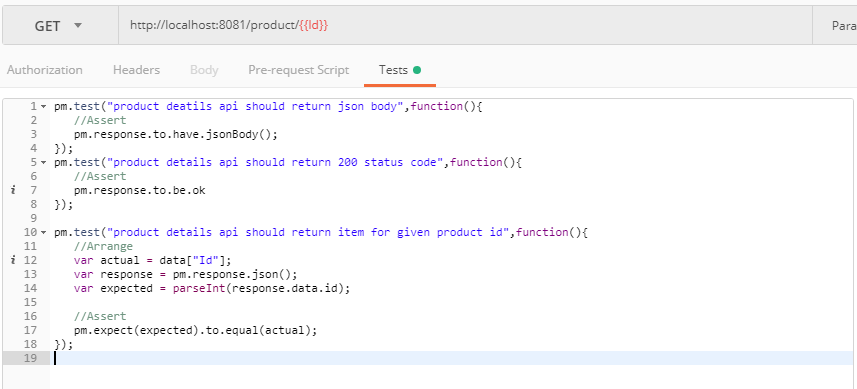
Product details request with the test scripts -
To run the product details API function, you require test data, so we need to use the Collection Runner to run it.
-
Open the Runner by clicking on the Runner button on the toolbar.
-
It will open the Collection Runner window separately.
-
Select Products > With Test Data under Choose a collection or folder.
-
Click on the Select File button and select the
ProductList.csv(refer to the attachment).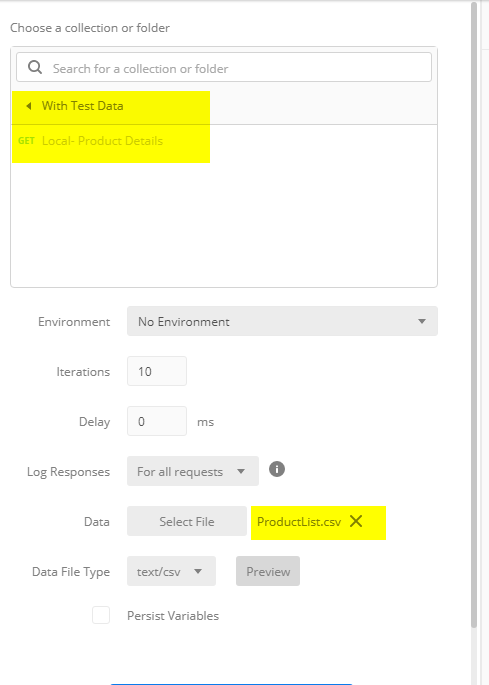
Collection Runner with the With Test Data folder and ProductList.csv selected -
Click on the Preview button to see the test data coming through.
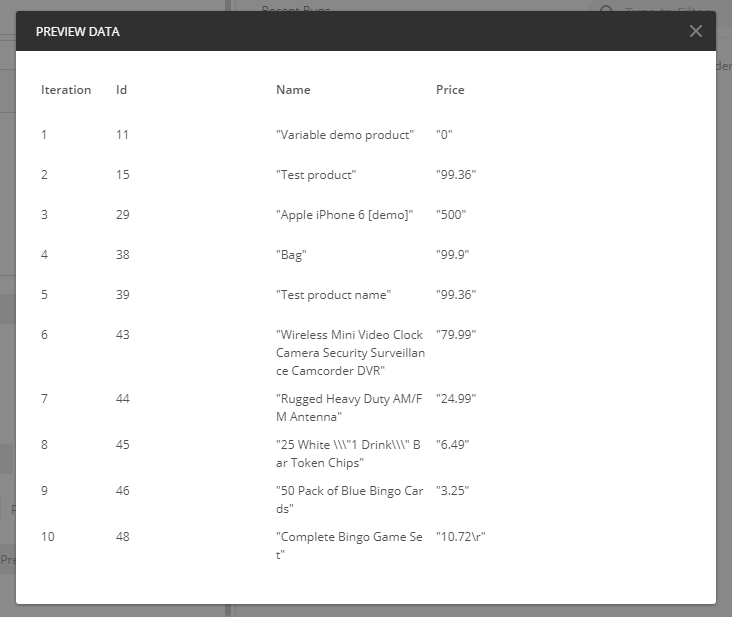
Preview Data window showing one iteration per product -
Click on the Run button. Collection Runner will start running the given collection with test data.
-
Once all tests run, it will produce a very nice report. It will list the iteration-wise test case results, so we can easily spot which test data or iteration test failed.
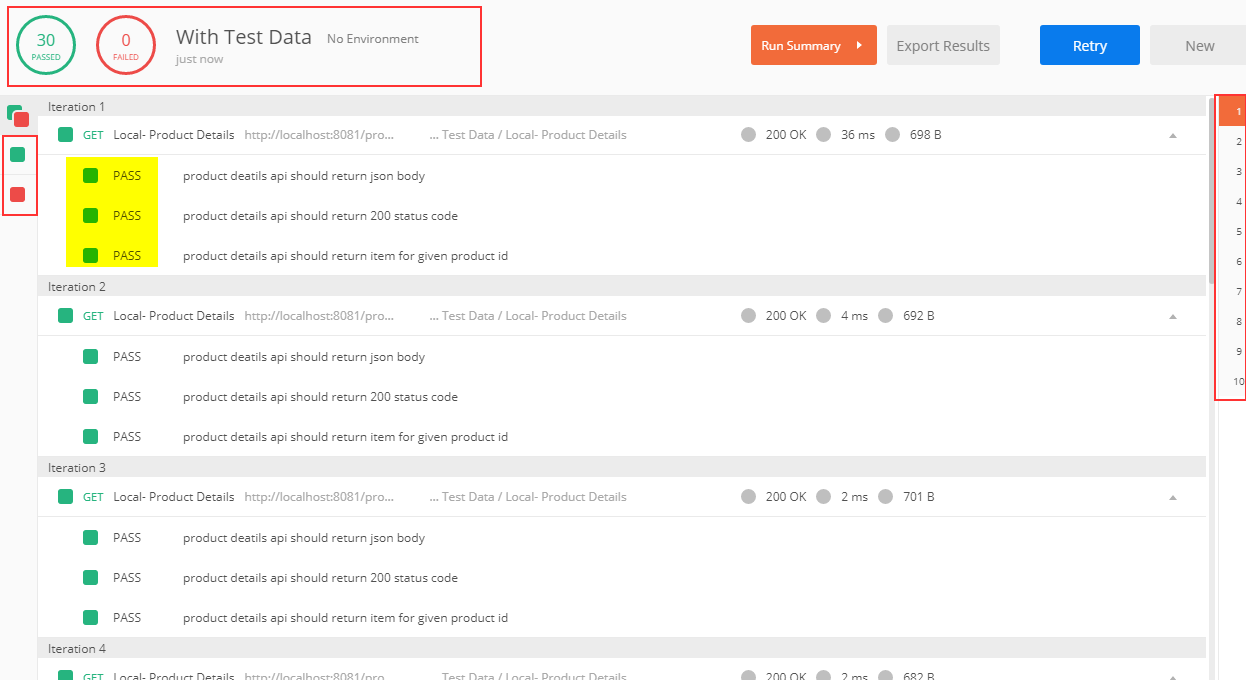
Run results for the product details tests across all iterations -
You can filter the test run based on the test result by clicking the appropriate result icon on the left side of the result window.
-
-
Example 2: Fund List with Azure Search
Now, let us take a real time example. This one uses environment variables (refer to the Postman Environments article) along with test data.
Scenario
Assume, we have an application to list out the funds specific to a universe, and the list should display CitiCode, UnitCode, UnitName, FundCode and SectorCode. We are going to use the Azure Search index to pull the required data for the fund list.
Azure Search index provides the API to pull the data, and the request should have the index name, API version, API key and search query.
Azure Search Index API Uri Syntax:
https://<azure index domain>/indexes/<index name>/docs?&api-key=<api key>&api-version=<version>&<search query>With all the above information, we are ready to start writing our very first real time automation test.
Steps
-
Prepare your test cases. There are few important test cases as below for our example scenario,
- API should return JSON response
- API response should have the unit information
- API must return a value for Universe
- API must return a value for CitiCode
- API should return a valid Universe
- API should return a valid CitiCode
- API should not return COP unit
-
Prepare your test data in a csv file (refer to
AzureIndexTestData.csvin the attachment). For our example, it requires the following data,- Universe
- Sector
Universe,Sector O,O:ACTMAN O,O:DM T,T:PRV ... -
Now, open the Postman Desktop app. Chrome add-on is not recommended here.
-
Create a new collection with the name of “AzureSearch”.
-
Create a folder called “Unit”. We must properly organize our tests to run them on the Postman Runner. Maybe we should create more subfolders for each functionality of the API or test categories like smoke test, regression test, etc. For this demonstration, one folder is enough.
-
Create a new environment for QA.
-
Now, create the following environment variables under the QA environment,
Key Value AzureIndexDomain <your azure search domain>IndexName <your index name>APIKey <your query api key>APIVersion <api version>Replace the input place holders with actual values.
-
Create a new request with the GET verb.
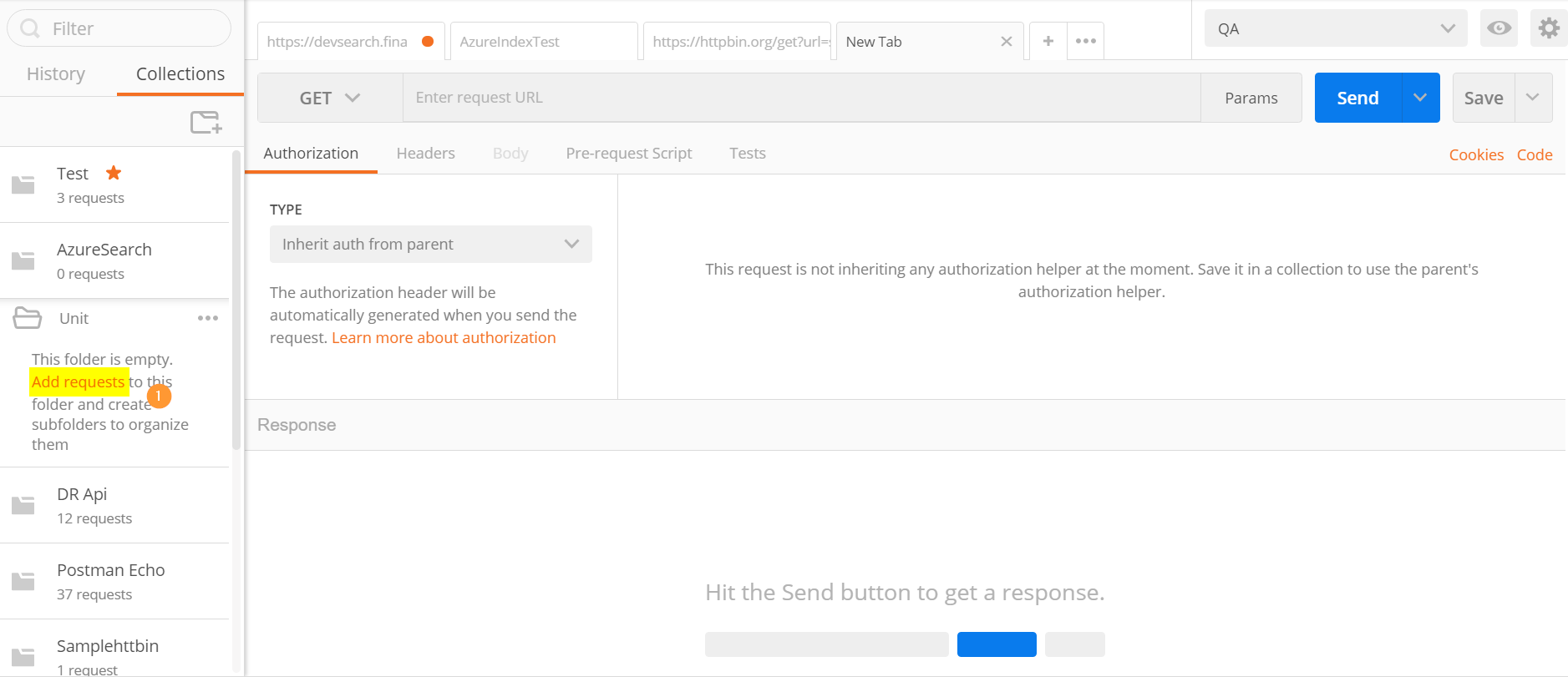
Add a new request to the Unit folder -
Save it under the Unit folder with the name of “UnitIndexDataTest”.
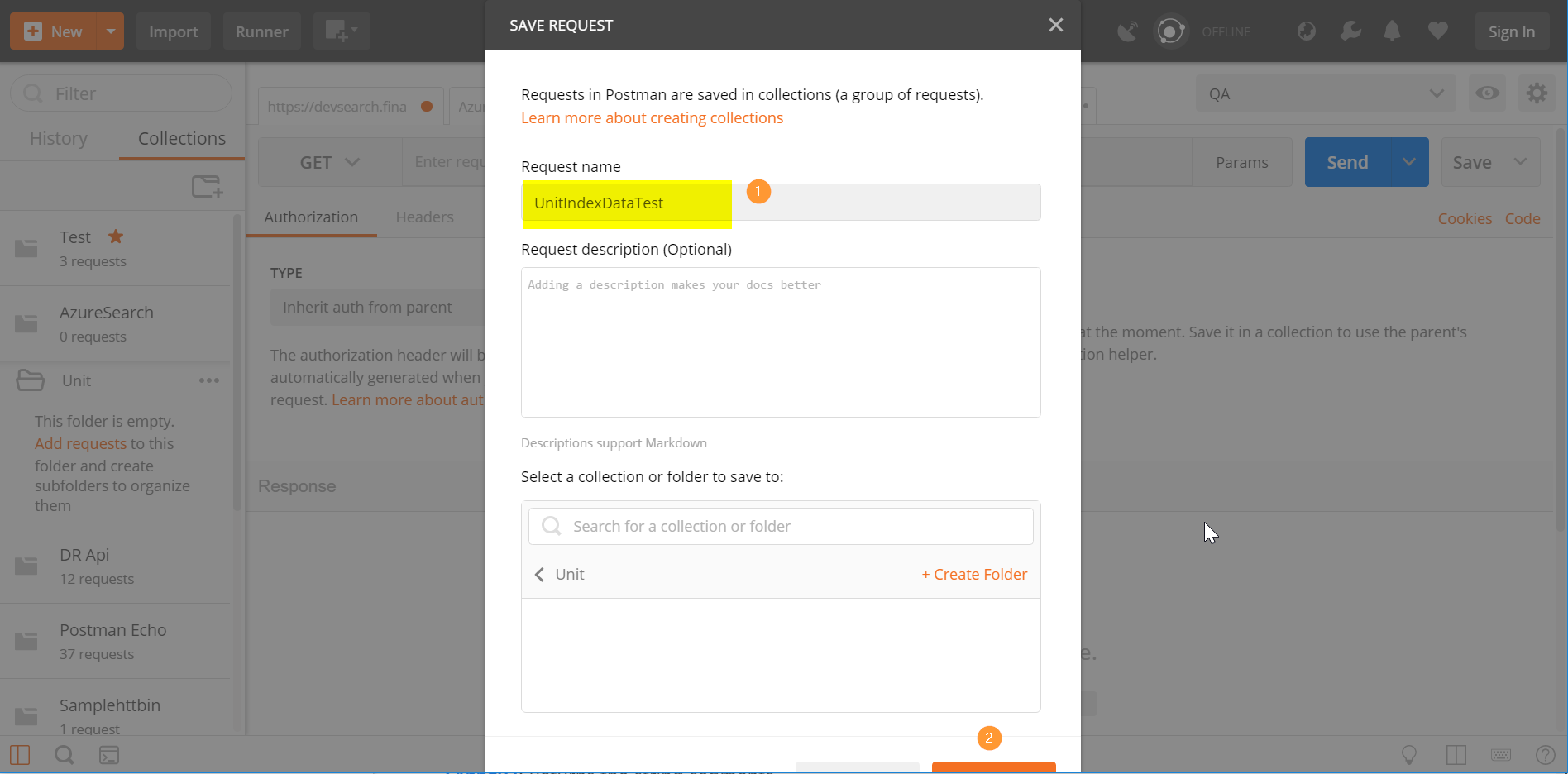
Save Request dialog with the UnitIndexDataTest name -
Choose QA as the environment.
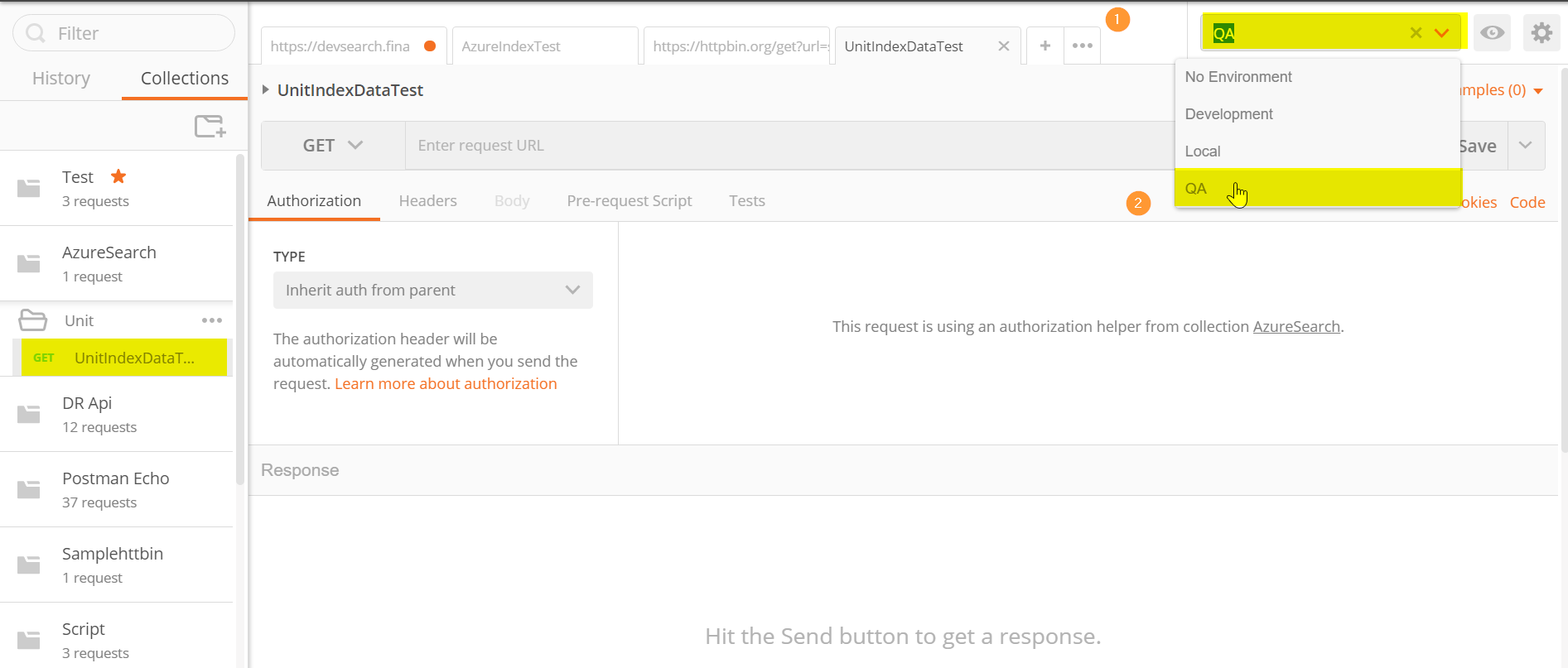
Environment dropdown with QA selected -
Prepare the Azure Search query and add all necessary variables in the query. For our current example, we require the following query to pull the data from the Azure Search index. In this query, variables are used to resolve the value at runtime depending on the current environment and test data.
- Environment variables
- AzureIndexDomain
- IndexName
- APIKey
- APIVersion
- Test data variables
- Universe
Azure Search Query:
https://\{\{AzureIndexDomain}}/indexes/\{\{IndexName}}/docs?$count=true&$filter=UniverseCodeList/any(u: u eq '\{\{Universe}}') and (IsTrustnetUnit eq true and IsTrustnetFund eq true) and Category ne 'AIP' and Category ne 'NIP' and Category ne 'RIP' and Category ne 'COP' and Currency ne 'CPS'&$orderby=UnitNameFullSortable asc&$skip=0&$top=3&$select=CitiCode,UnitCode,UnitNameFull,Category,FundCode,IsFundDriver,UniverseList,SectorList&api-key=\{\{APIKey}}&api-version=\{\{APIVersion}} - Environment variables
-
Add the above query into the URL field.
-
Open the Tests tab and add the following test scripts,
var response = pm.response.json().value;

pm.test("Unit index must return json body", function () \{
    //Assert
    pm.response.to.have.jsonBody();
});

pm.test("Unit index must return the result set", function () \{
    //Assert
    pm.expect(response.length).to.be.above(0);
});

pm.test("Unit index must return value for Universe", function () \{
    //Arrange
    var expected = 0;
    var universes = _.filter(response, function (item) \{
        return typeof (item.UniverseList) === 'undefined' || item.UniverseList === null;
    });
    var actual = universes.length;

    //Assert
    pm.expect(actual).to.equal(expected);
});

pm.test("Unit index must return a value for CitiCode", function () \{
    //Arrange
    var expected = 0;
    var citiCodes = _.filter(response, function (item) \{
        return typeof (item.CitiCode) === 'undefined' || item.CitiCode === null;
    });
    var actual = citiCodes.length;

    //Assert
    pm.expect(actual).to.equal(expected);
});

pm.test("Unit index must return valid Universes", function () \{
    //Arrange
    var expected = 0;
    var universes = _.filter(response, function (item) \{
        var validUniverse = _.find(item.UniverseList, function (univ) \{
            var universeItem = univ.split('|')[1];
            return universeItem === data["Universe"];
        });
        return typeof (validUniverse) !== 'undefined' && validUniverse !== null;
    });
    var actual = universes.length;

    //Assert
    pm.expect(actual).to.above(expected);
});

pm.test("Unit index should not return COP Unit", function () \{
    //Arrange
    var expected = 0;
    var copUnits = _.filter(response, function (item) \{
        return item.Category === 'COP';
    });
    var actual = copUnits.length;

    //Assert
    pm.expect(actual).to.equal(expected);
});
Here,
_is the lodash library which is pre-loaded in the Postman Sandbox.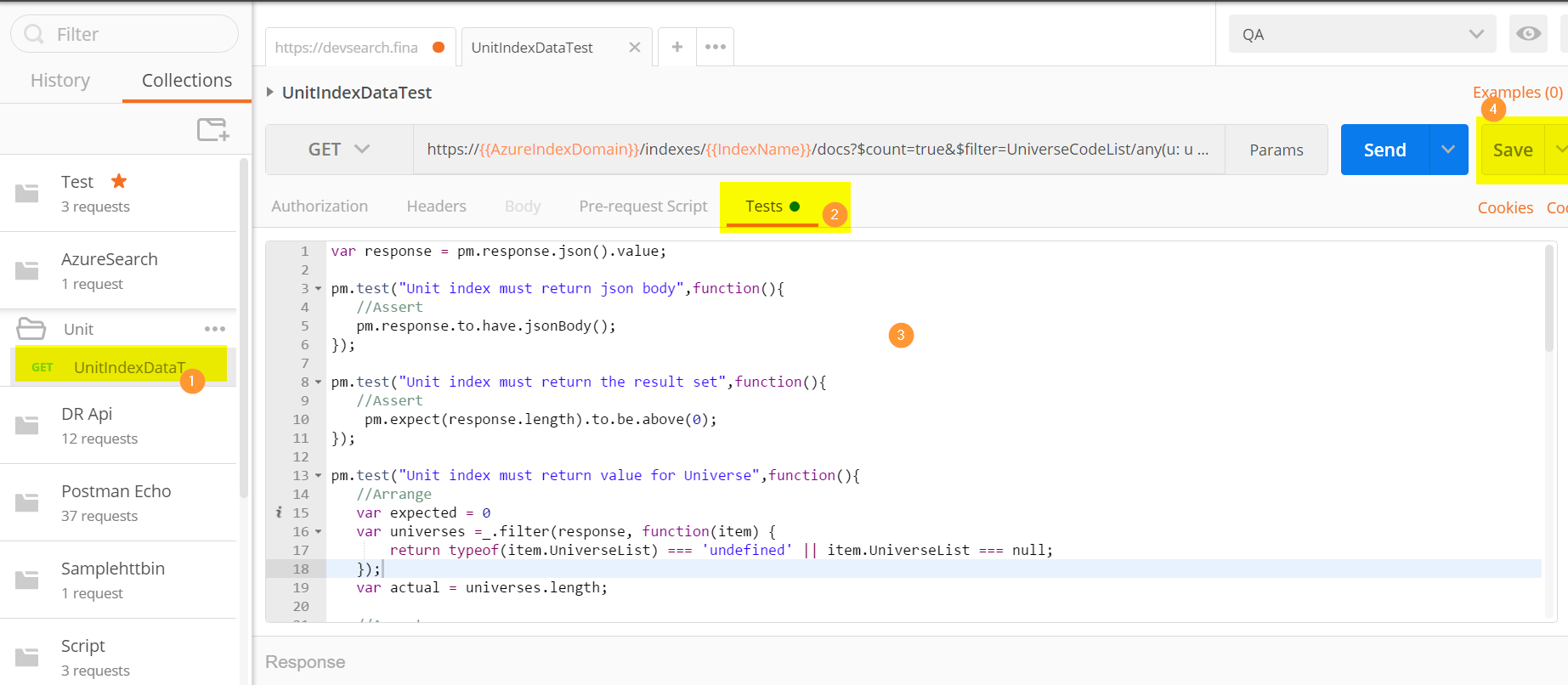
UnitIndexDataTest request with the test scripts in the Tests tab -
Click on the Save button.
-
Now, we are ready to execute our test scripts. We require the Postman Collection Runner to execute our scripts, so click on the Runner button at the top of the Postman window.
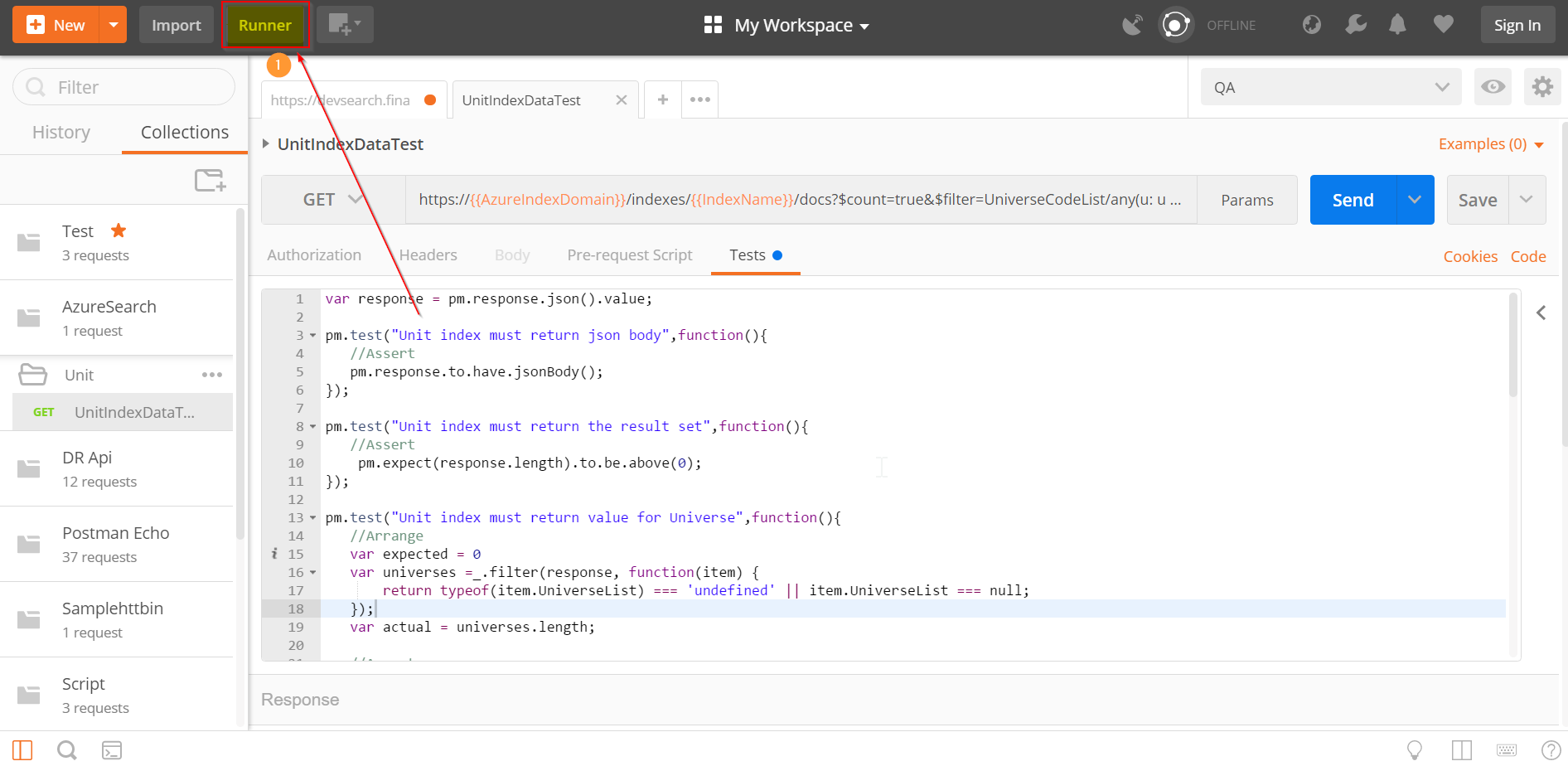
Runner button on the Postman toolbar -
It will open the new runner window.
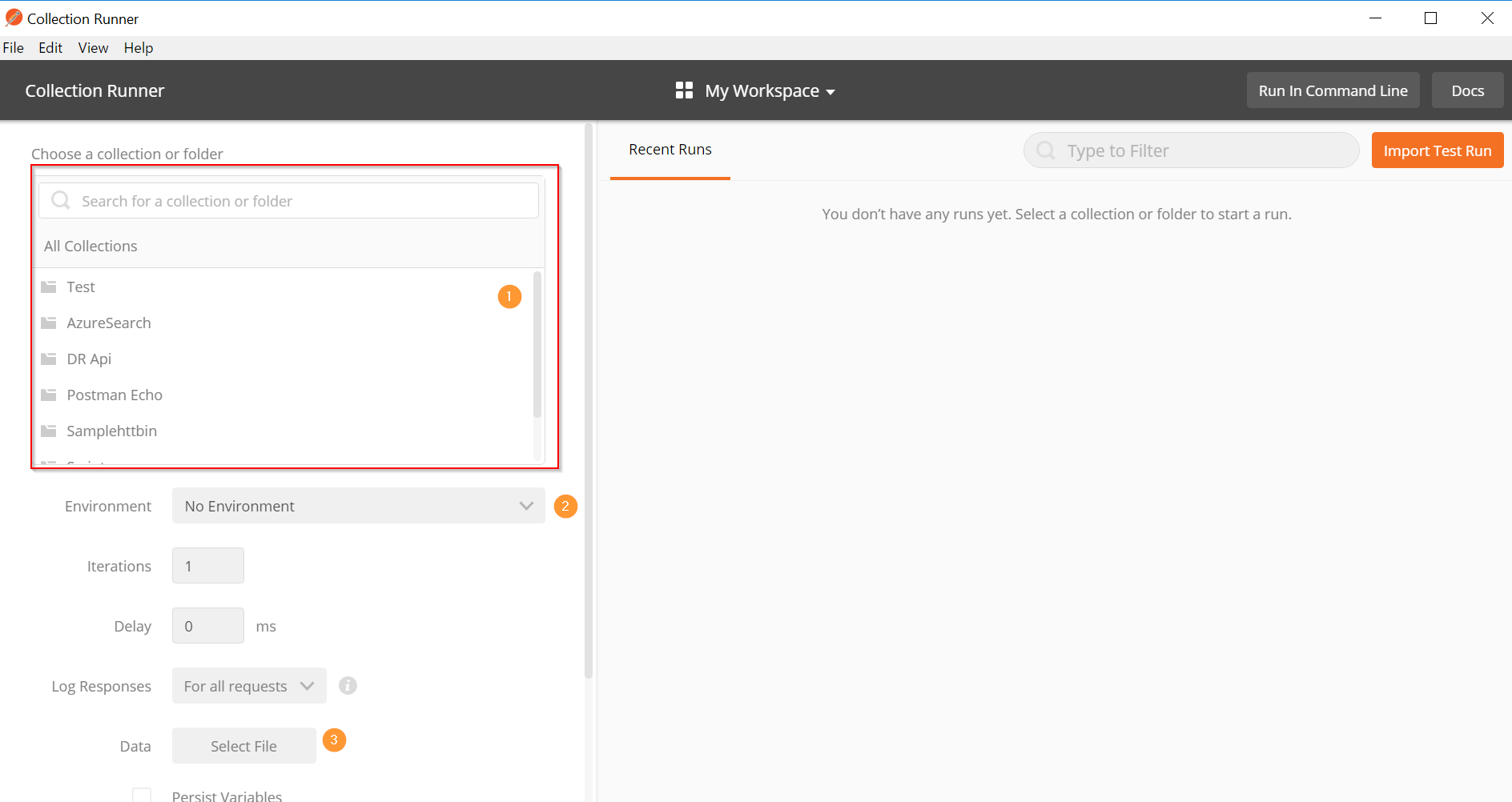
Collection Runner window -
Select the Unit folder under the AzureSearch collection.
-
Select QA as the environment.
-
Click on the Select File button to select your test data. It will open a File Dialog.
-
Select the test data csv file and then click on the Open button.
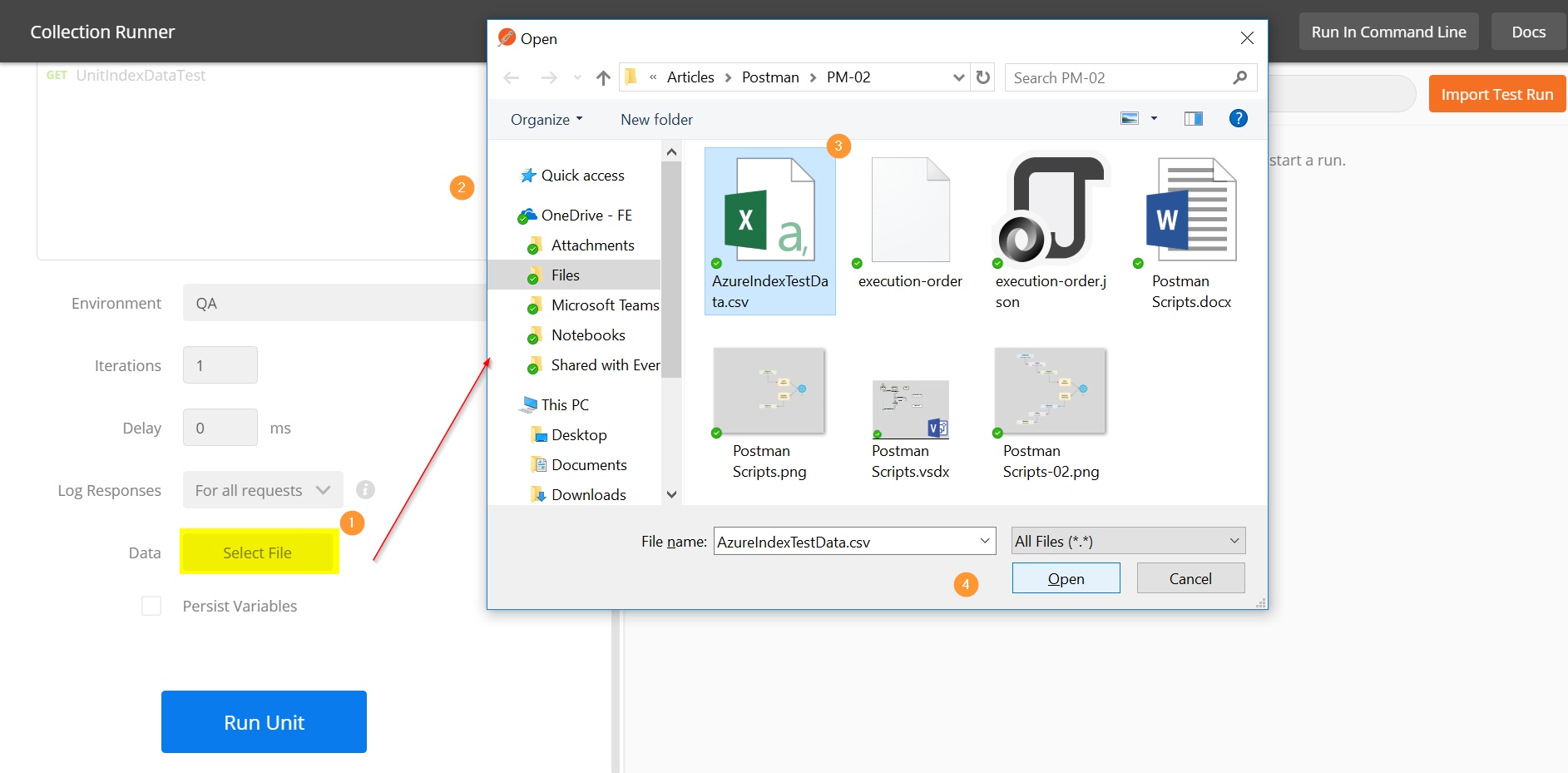
Selecting AzureIndexTestData.csv as the test data file -
Once you have selected the test data file, the file name will be displayed near to the Select File button. Iterations will also be updated with the row count of the test data file.
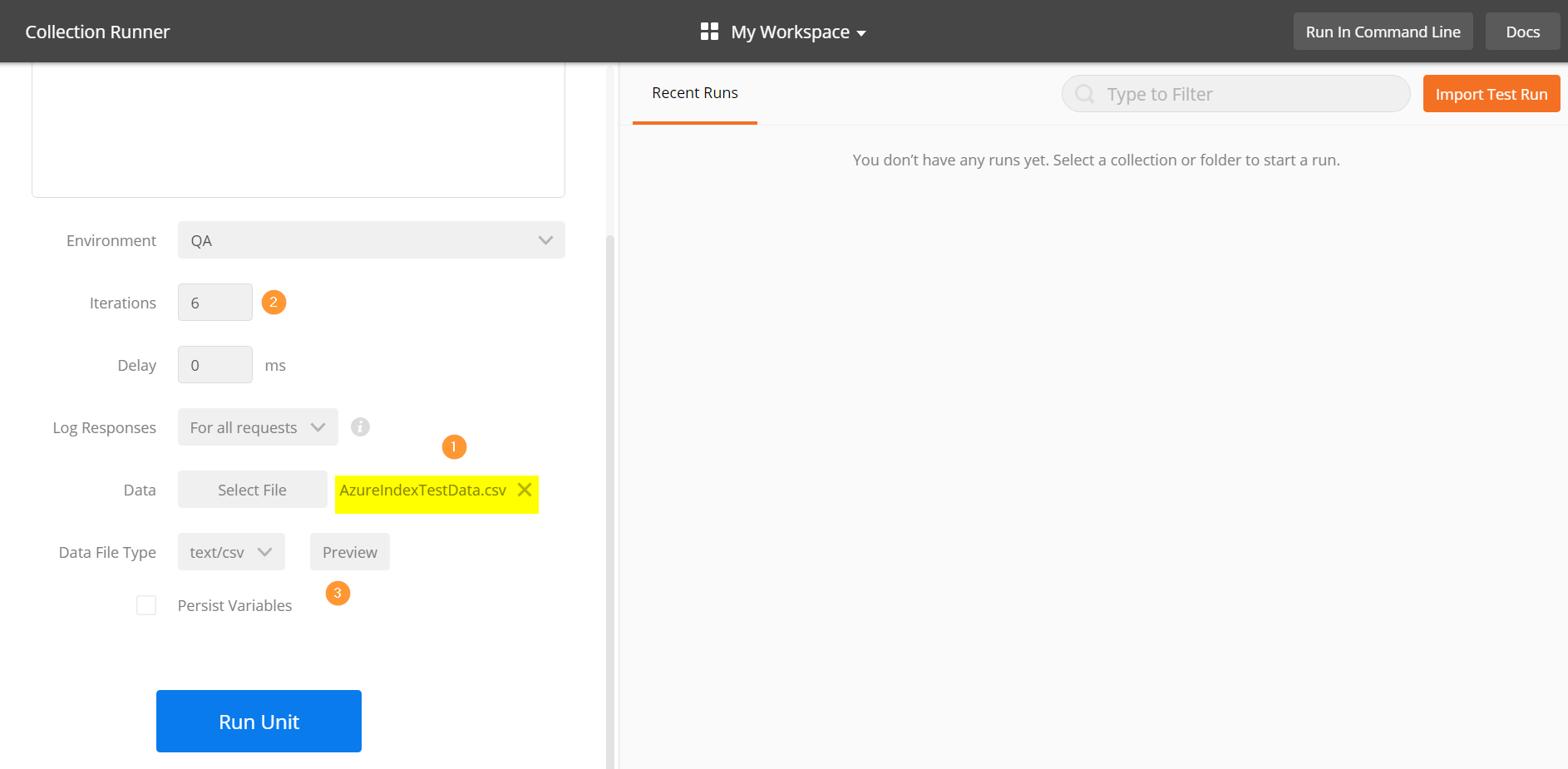
Collection Runner with the test data file selected and iterations updated -
Click on the Preview button to verify whether your test data is properly formatted and loaded into the Postman runner.
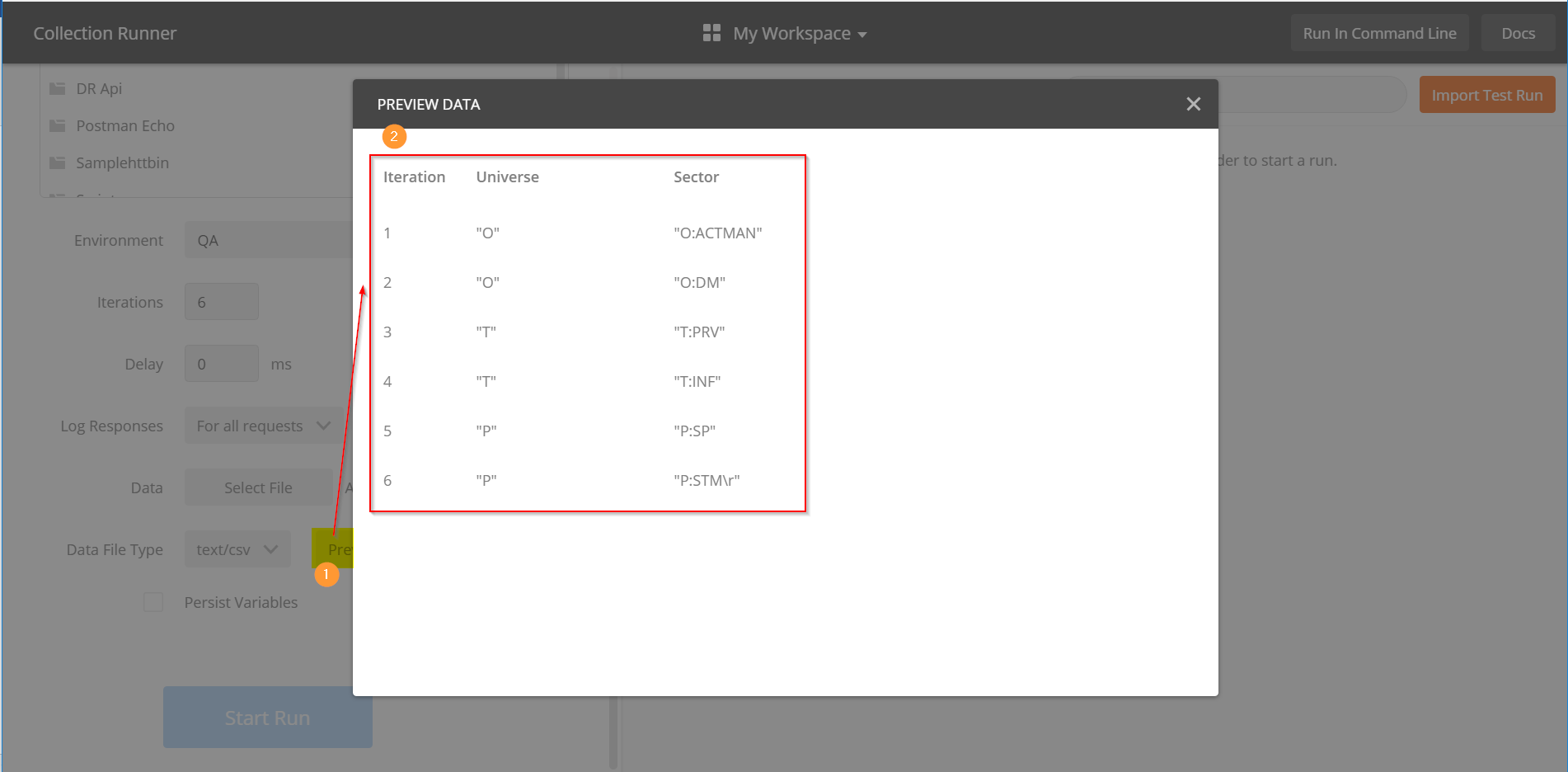
Preview Data window with Universe and Sector values -
Once you have verified the test data in the preview window, click on the Run button to run your tests.
-
Postman runner will run all your test scripts based on your test data and iteration count.
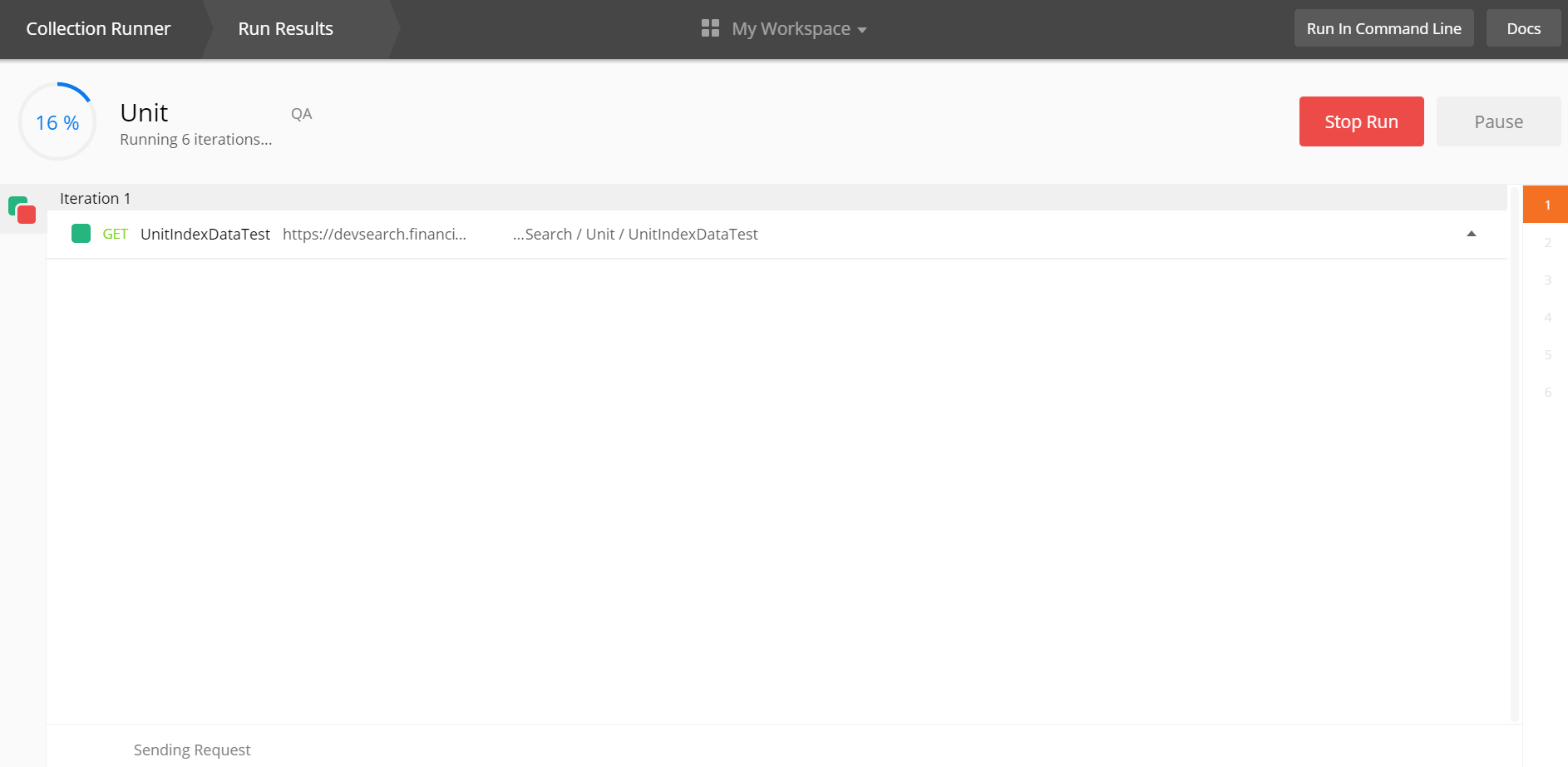
Collection Runner running the Unit folder iterations -
Once all tests run, it will produce a very nice report. It will list the iteration-wise test case results, so we can easily spot which test data or iteration test failed.
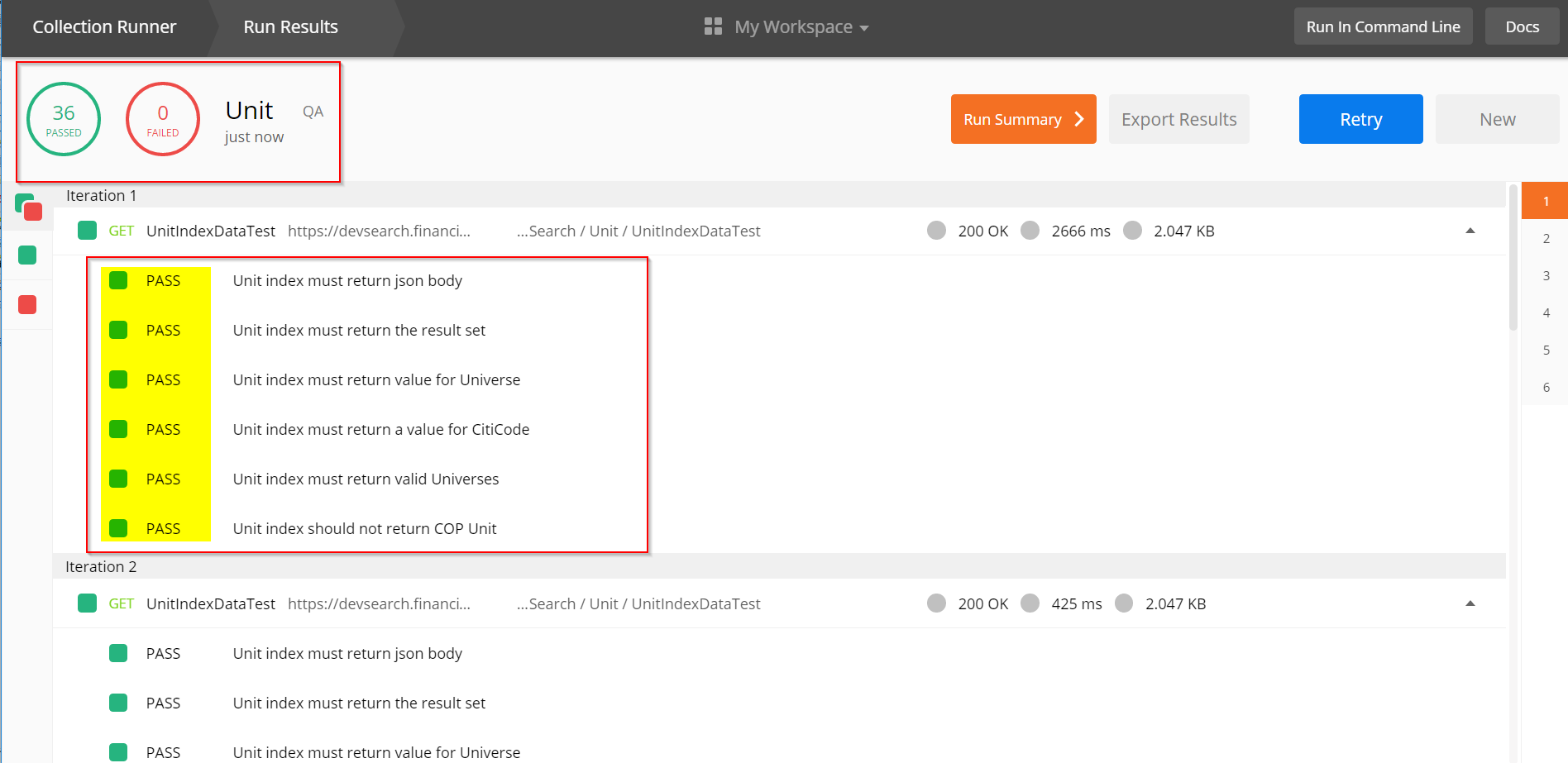
Run results with all tests passed for each iteration -
You can filter the test run based on the test result by clicking the appropriate result icon on the left side of the result window.
Note: Don’t use the Retry button to run your tests again because the test data will not be mapped the second time. So, the Universe variable will not be replaced with the actual test data.
Tips
While writing the automation tests with Postman, you can follow the following best practices,
- Use a proper folder structure to organize your tests so that you can pick and choose the tests to run in the Collection Runner. Not only for the Collection Runner, it also gives better maintenance when your API grows on a daily basis.
- You can create separate folders for your API resources (like user, product, order, etc.)
- You can create a subfolder for each test suite or scenario under the main resource folder.
- You can create a separate folder for smoke or regression tests.
- You can create separate folders for different business domain entities.
- Add a readable name for your collection and folders.
- Add a readable name for your test cases.
- One assert for one test.
- Start with red and end with the green result. Sometimes a test assert statement will give false positive results, so it is better to start your test with the fail result and it will ensure you have the right assert statement in place.
- Use the AA (Arrange and Assert) or A (Assert) pattern in your test case.
- Use the “data” or “pm.iterationData” variable in a test case to access the current iteration test data.
- Ensure you have the right tests in place and avoid unnecessary tests.
- Postman does support BDD (Behaviour Driven Development) style tests, so you can write test scripts in BDD style.
Conclusion
In this article, we have looked at how to prepare test cases and test data, how to write API automation tests with two real world examples and how to run them with the Collection Runner. Postman scripts are very easy to write and execute. I really appreciate that you took the time to read this series.
The Collection Runner is a very good tool to visually see results and status, but it runs all tests synchronously, so it will take a longer time when we have lots of tests to run. Another drawback is, there is no option to integrate this with your CI/build system since it requires manual trigger and interaction. Postman has a console version called “Newman” and it solves the above issues. With the help of node async modules and Newman, we can run our tests in parallel. We can see in a separate post how we can do this.
Related Posts
How to write Postman Scripts? - Part 1
The basics of Postman scripts: when pre-request and test scripts run, the execution order, the Postman Sandbox and how to write a first script.
Postman Environments
Postman environments let us keep one request template for local, dev, qa and production by moving host names and API keys into environment variables, instead of duplicating collections.
What is contract testing and why do we need it? - Part 1
What an API contract is, why we need contract testing, how it fits with unit, integration and end-to-end tests, and provider-driven versus consumer-driven approaches.