How to version and trace releases with Git? A sprint walkthrough - Part 3
Version and trace releases with Semantic Versioning, tags and a sprint walkthrough from the release branch to a production hotfix.
How to version and trace releases with Git? A sprint walkthrough - Part 3
“Which version is in production?” and “Is this fix in that build?” are two questions every team gets asked, usually during an incident. When the version numbers mean nothing and builds can’t be traced back to the work items, answering them takes hours of digging through commits. In the previous article, we discussed the roles, the development process, the branch policies and the best practices. In this last article of the series, we are going to see how we version our applications and libraries, how to trace a build back to its work items, and a complete sprint walkthrough which puts the whole Git process together.
Git Process series:
- How to choose a Git branching strategy?
- Who does what in a Git workflow? Roles, permissions and the development process
- How to version and trace releases with Git? A sprint walkthrough (this article)
TL;DR Summary
- We use Semantic Versioning with a build number: Major.Minor.Patch.Build (e.g. 2.1.3.456).
- Major for breaking or significant usability changes, Minor for incremental features and bug fixes, Patch for hotfixes and Build for the automated build number.
- The SDM decides the major and minor version during sprint planning.
- NuGet libraries follow the same versioning.
- Every released artefact carries a version.json file with the build version, which traces it back to the work items and changes.
Versioning
We use Semantic Versioning for versioning our applications and libraries. Each version has three parts: Major, Minor and Patch. In addition to this, we also add the build number. Each part has a specific meaning and should be changed only for precise reasons.
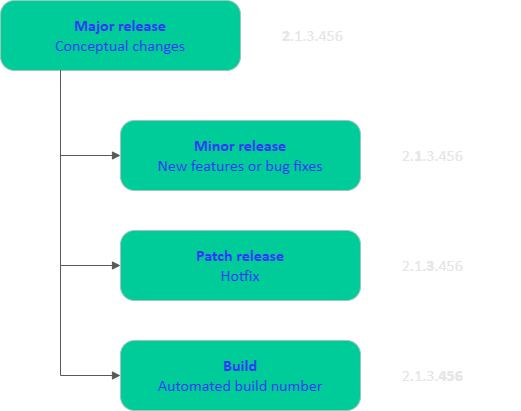
Sample version number: 2.1.3.456
- “2” indicates that the application is in its second major release.
- “1” indicates the first release of incremental feature(s) to the major release.
- “3” indicates the number of hotfixes that have been done on the “2.1” version of the application.
- “456” is the build identifier.
Note: In standard Semantic Versioning, the patch number is for backward compatible bug fixes. In our process, regular bug fixes go out with the sprint release as part of the minor version, so the patch number counts the hotfixes (out-of-band releases).
Reasons to change the version number
It is the SDM’s (Service Delivery Manager) call to decide what the major and minor version numbers for the release will be, based on the features that are going out in the release. This can typically be decided during the sprint planning itself. The following are the reasons to change the different parts of the version number,
| Version part | Reason | Example (from 1.0.0.0) |
|---|---|---|
| Major | Significant change in the usability of the application, or a change that is not backward compatible | 2.0.0.46 |
| Minor | Incremental feature updates and bug fixes | 2.1.0.53 |
| Patch | When there is a hotfix | 2.1.1.56 |
| Build | Automated number | 2.1.1.57 |
When a higher part changes, the lower parts (except the build number) are reset to zero. The build number keeps increasing, since it comes from the build pipeline.
NuGet Version Number
NuGet library version numbers follow the same process as explained above. This matters even more for libraries, because the consumers decide whether an upgrade is safe by looking at the major version.
Traceability
This section explains the correlation between the user story, commit, release version and build artefact.
Every artefact that is released through the DevOps pipeline is associated with a version.json file. This file contains the build version number which is set by the build pipeline. This build version number is used to trace the work items and changes that went into the build.
The traceability chain looks like this,
Work item (user story/bug)
   └─ linked to the pull request (branch policy: check for linked work items)
        └─ merged into the Release branch
             └─ CI build with version 2.1.0.53 (version.json in the artefact)
                  └─ deployed to environments and production
                       └─ tagged in Master as the release
So, from the version.json of a running application, we can find the build, from the build the commits and pull requests, and from the pull requests the work items, and vice versa.
Putting it together: a sprint walkthrough
Let us walk through one sprint with the whole process. Assume the application is at version 2.0.0 in production, and Sprint 21 starts on 23 September 2019.
Sprint planning
- The SDM decides that the sprint adds new features, so the release will be version 2.1.
- The Team Lead creates the release branch
R_Sprint-021_2019-09-23from the latest commit on Master, sets the branch permissions and points the CI/CD pipelines to it.
During the sprint
- John picks user story 12345 and creates
S_12345_John_Change-in-all-environmentfrom the release branch, with a CI pipeline attached. - John commits and pushes his work; CI runs the unit tests and code analysis on every push.
- Another developer merges a story into the release branch, so John rebases his branch from the release branch to stay up to date.
- John completes the story and creates a pull request. CI validates it, two reviewers approve it, the work item is linked and all comments are resolved.
- John merges the pull request into the release branch. CI creates the build 2.1.0.53 and deploys it to the development environment. John deletes his user story branch.
A production issue in the middle of the sprint
- A critical bug (Bug 123) is found in production on version 2.0.0. The Team Lead creates the hotfix branch
H_Sprint-021_2019-09-23from the most recent tag (2.0.0), not from the latest commit. - The fix goes through a bug branch
B_123_John_XSS-Injection, a pull request and CI/CD on the hotfix branch, and is released as version 2.0.1. - The hotfix branch is merged to Master and tagged, and the Team Lead rebases the release branch from Master, so the sprint release also has the fix.
End of the sprint
- The build is verified by QA in the different environments and approved for production.
- The Team Lead opens Master, merges the release branch into Master, tags it with the release version and locks Master again.
- The release branch is deleted, and Sprint 22 starts with a new release branch from Master.
At any point, version.json in the deployed artefact tells us exactly which build is running, and the tags in Master tell us exactly which code went into each release.
Wrap up
In this article, we have looked at how we use Semantic Versioning with a build number, when to change each part of the version, how a build is traced back to its work items, and a sprint walkthrough which puts the whole Git process together. With this, we have completed the Git Process series: from the branching strategy, the roles, the development process and the best practices, to versioning and traceability. I really appreciate that you took the time to read this series. To see how these branches flow through the build, test and release environments, refer to the CI/CD Process series.
Related Posts
How does a change flow from commit to production in CI/CD? - Part 3
How a change flows from commit to production: the release branch workflow, CI and CD steps, quality gates and how we handle build failures.
How to choose a Git branching strategy? - Part 1
Git Flow versus GitHub Flow, the Git terminology we use, our branching strategy, the purpose of each branch and the naming conventions.
Who does what in a Git workflow? Roles, permissions and the development process - Part 2
Roles and permissions in the Git workflow, the step-by-step development process with Git commands, Azure DevOps branch policies and review best practices.