How to choose a Git branching strategy? - Part 1
Git Flow versus GitHub Flow, the Git terminology we use, our branching strategy, the purpose of each branch and the naming conventions.
How to choose a Git branching strategy? - Part 1
Moving to Git is easy; agreeing on how a team uses Git is the hard part. Git gives us cheap branches and powerful merges, but without a common branching strategy every developer branches, names and merges in their own way, and very soon nobody knows which branch holds the code that is in production. In this series, I share the Git process which we defined for our teams when we moved to Git. In this article, we are going to see the common branching workflows, the Git terminology we use, our branching strategy, the purpose of each branch and the naming conventions.
Git Process series:
- How to choose a Git branching strategy? (this article)
- Who does what in a Git workflow? Roles, permissions and the development process
- How to version and trace releases with Git? A sprint walkthrough
TL;DR Summary
- Git Flow suits projects with a scheduled release cycle; GitHub Flow suits projects with continuous deployment.
- We use a customized Git Flow: Master, one Release branch per sprint, Hotfix, User Story, Bug and Experiment branches.
- Master is the source of record for the code in production, and it is locked until the release merge.
- Use merge to sync changes from a child branch to its parent, and rebase to sync changes from a parent to its child.
- Every branch name follows a convention which tells its type, work item, owner and purpose at a glance.
Introduction
As we moved towards Git, there were a few branching workflows available, like Git Flow, GitHub Flow, etc., which we could adopt for our development process. Though Git Flow and GitHub Flow seem similar, both have different meanings.
- Git Flow is ideally suited for projects that have a scheduled release cycle. It uses long-lived branches for development and releases, and short-lived branches for features and hotfixes.
- GitHub Flow is ideally suited for projects that have a continuous deployment cycle. There is only one long-lived branch (master); every change is done in a short-lived branch, reviewed through a pull request and deployed right after the merge.
| Git Flow | GitHub Flow | |
|---|---|---|
| Release cycle | Scheduled (e.g. every sprint) | Continuous deployment |
| Long-lived branches | Master and release/develop | Master only |
| Hotfixes | Separate hotfix branches | Same as any other change |
| Complexity | Higher | Lower |
| Needs strong test automation | Helpful | Mandatory |
Since our teams release at the end of each sprint, we started with Git Flow. Once we are comfortable with Git Flow and Continuous Delivery, we would probably move to GitHub Flow. However, for our deployment needs, we have customized the flow as shown in the next section.
Info: To get the most out of this series, the team should have the requisite knowledge of Git, or should be provided adequate training.
Terminology
Find below the Git terms we use in this series,
- Branch - A version of the repository that diverges from the main working project.
- Master - The primary branch of all repositories.
- Tag - A reference typically used to mark a point in the commit chain, like a release.
- Merge - Taking the changes from one branch and adding them into another branch. We use merge to sync the changes from a child branch to its parent branch.
- Rebase - Combining two branches that have diverged from one another by replaying the commits of one branch on top of the other. We use rebase to sync the changes from a parent branch to its child branch.
- Origin - The conventional name for the primary (remote) version of a repository.
- Pull Request - A request to the repository maintainers to review the commits made before they are merged.
- CI/CD - Continuous Integration/Continuous Delivery.
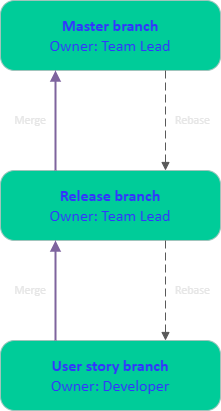
The merge and rebase directions are worth remembering: changes go up with merge and come down with rebase. A completed user story goes up to the release branch with a merge, and the latest changes from the release branch come down to the user story branch with a rebase.
Branching Strategy
The following diagram depicts our branching strategy across sprints.
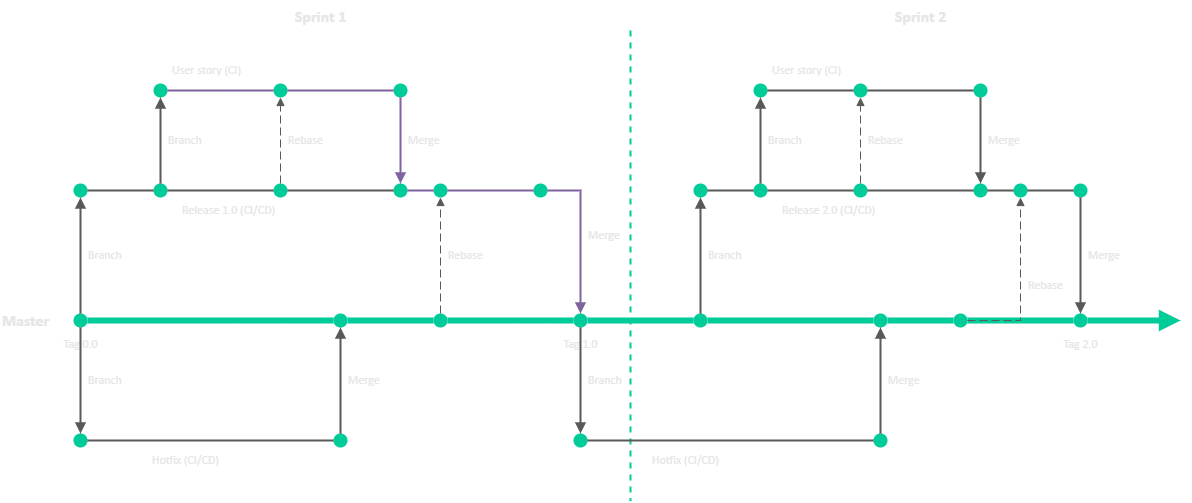
The flow highlighted in purple is how a completed user story goes up: it is merged into the release branch, and the release branch is merged into master and tagged. The dashed lines are the rebases, which bring the changes down. Let us walk through the diagram,
- At the start of Sprint 1, a Release branch (Release 1.0) is branched from Master (Tag 0.0).
- Developers create User Story branches from the Release branch. Each User Story branch has CI, and it is rebased from the Release branch to stay up to date.
- When the user story is complete, it is merged back into the Release branch, which has CI/CD.
- When a production issue needs an out-of-band fix, a Hotfix branch is created from the most recent tag, and it is merged back into Master.
- Master changes (like a hotfix) are rebased into the Release branch.
- At the end of the sprint, the Release branch is merged into Master and tagged (Tag 1.0).
- Sprint 2 starts again with a new Release branch (Release 2.0) from Master.
The following diagram depicts the hierarchy of the long-lived and short-lived branches and their owners. The flow highlighted in purple is the merge path, which takes the changes up to Master; the dashed lines are the rebases, which bring the changes down.
Branches
Each branch has a specific purpose and scope. Some of these branches are quite similar in purpose, and have been called out by different names to identify the nature of the work performed in that branch uniquely.
Master Branch
The Master branch acts as the authoritative source of record for the code in production. This is true for most of the sprint, until the Release branch is merged to the Master branch at the end of the sprint.
- Only the Team Lead has Owner permissions for the Master branch.
- Any Hotfix branch is created from the most recent tag and not from the latest commit.
- The Master branch should be locked against accidental changes and should only be opened during the final merge from the Release branch.
Release Branch
This branch holds the work from all the user stories the team is working on for the sprint. It is created from the most recent commit on the Master branch, and there is only one Release branch for the sprint. It is from here that the deployment bits are taken, built and promoted across the different environments before being released to production. After the release, a tag is created and named with the build version, and the branch is deleted after this.
- The Release branch should be created only from the Master branch.
- The Release branch must have CI/CD enabled.
- The Team Lead has control over the Release branch.
Hotfix Branch
The work needed for an out-of-band release is performed in a Hotfix branch. This branch is created from the most recent tag. Otherwise, this branch behaves exactly like the Release branch: it has its own CI/CD pipeline, it is merged to the Master branch and it is tagged.
User Story Branch
This branch is responsible for the work to be done for one user story and only that user story. Conversely, a user story cannot be done on more than one branch. The developer creates this branch for the user story he/she has been assigned for the sprint. For example, if a developer has been assigned two user stories for the sprint, the developer creates two different user story branches, as and when he/she starts work on each user story.
When the developer checks in his/her work to the remote repository, automated tests and vulnerability assessments are executed to ascertain the validity of the code. The user story branch is merged with the release branch when the work for the user story is complete.
- A User Story branch should be created only from the Release branch or a Hotfix branch.
- Once the user story has been completed, it needs to be merged to its parent branch.
- A User Story branch should have CI enabled.
Bug Branch
Bug branches are created to address the production bugs triaged in the sprint. A Bug branch is like a User Story branch, except that it is created for a bug rather than a user story; only the naming convention is different. The reason this branch is identified separately is that bugs have to be tracked independently and should not be included as part of a user story.
Experiment Branch
Experiment branches are used to explore a new idea or technology (like a proof of concept) without affecting the sprint work.
Branches at a glance
| Branch | Created from | Merged to | Owner | Lifetime | CI/CD |
|---|---|---|---|---|---|
| Master | - | - | Team Lead | Permanent | - |
| Release | Master (latest commit) | Master | Team Lead | One sprint | CI/CD |
| Hotfix | Master (latest tag) | Master | Team Lead | Until the hotfix release | CI/CD |
| User Story | Release or Hotfix | Its parent | Developer | One user story | CI |
| Bug | Release or Hotfix | Its parent | Developer | One bug | CI |
| Experiment | Any | Not merged unless agreed | Developer | Until the experiment is done | Optional |
Branch naming convention
- The branch name should contain a summary.
- Use ”_” as the delimiter between keywords.
- Hyphenate a group of words in the short description.
- The short description should be a maximum of 40 characters.
- Casing should be maintained for better readability.
| Branch | Format | Example |
|---|---|---|
| Release | R_Sprint-<SprintNumber(nnn)>_<Start-Date-of-Sprint(YYYY-MM-DD)> | R_Sprint-021_2019-09-23 |
| Hotfix | H_Sprint-<SprintNumber(nnn)>_<Start-Date-of-Sprint(YYYY-MM-DD)> | H_Sprint-021_2019-09-23 |
| User Story | S_<WorkItemID>_<UserName>_<Short-Description> | S_12345_John_Change-in-all-environment |
| Bug | B_<BugID>_<UserName>_<Short-Description> | B_123_John_XSS-Injection |
| Experiment | E_<UserName>_<Short-Description> | E_John_Exploring-Azure-B2C |
The build version number should be v.<Major Version>.<Minor Version>.<Patch Version>.<Automated Build Number>, e.g. v.1.0.0.323. We will see the versioning in detail in Part 3.
A good branch name answers three questions without opening any tool: what type of work is it, which work item is it for, and who is working on it.
Wrap up
In this article, we have looked at Git Flow and GitHub Flow, the Git terminology we use, our branching strategy, the purpose of each branch and the naming conventions. I really appreciate that you took the time to read this article. In the next article, I will walk you through the roles and permissions, the step-by-step development process from a user story branch to the release, the Azure DevOps branch policies, and the code review and pull request best practices.
Related Posts
What is CI/CD and why do we need it? - Part 1
What CI, Continuous Delivery and Continuous Deployment mean, why we need CI/CD, the goals of our process and its six phases.
Who does what in CI/CD? Roles and environments - Part 2
The roles and responsibilities in the CI/CD process, which role owns which phase and the environments a build goes through, with their gates.
How to version and trace releases with Git? A sprint walkthrough - Part 3
Version and trace releases with Semantic Versioning, tags and a sprint walkthrough from the release branch to a production hotfix.