How to store application secrets in Azure Key Vault?
Azure Key Vault explained through vault creation, Azure AD access, secret retrieval, configuration, rotation and keeping application secrets outside container images.
How to store application secrets in Azure Key Vault?
Almost every application has secrets, database connection strings, storage account keys, API keys of third-party services and certificates. In most of the applications we have seen, including ours few years ago, these secrets live in web.config and are committed to the source control. Everyone who can see the repository can see the production database password. When a developer leaves the team or a key is leaked, rotating it means changing the config in many places and redeploying many applications. It is a security risk we cannot afford, especially when we are moving more applications to the cloud.
In the previous article, we discussed how to build a Docker image for an ASP.NET Core application and we said the secrets must not be baked into the image. In this article, we are going to see what is Azure Key Vault, how it works and the step by step instructions to store a secret and read it from an ASP.NET application.
TL;DR Summary
- Azure Key Vault is a cloud service to store and manage secrets, keys and certificates centrally.
- Applications authenticate with Azure Active Directory (Azure AD) and read the secrets at runtime, the secrets are not in the code or config files.
- Access is controlled with access policies per application, with least privilege (ex: only “get” on secrets).
- Every access is logged, so we know who read which secret and when.
- The application still needs one credential to talk to Azure AD, use a certificate instead of a client secret where possible.
- Cache the secrets in the application, don’t call Key Vault on every request.
Challenges
Secrets in source control
Once a secret is committed to Git, it stays in the history forever, even if we delete it in the next commit. Anyone with read access to the repository, now or in the future, has the production credentials.
Secrets everywhere
The same storage key is copied to five applications’ config files and the build server variables. When we need to rotate it, we don’t know all the places it is used, so the rotation never happens.
No audit trail
When a secret is in a config file, there is no record of who accessed it. In case of a security incident, we cannot answer the basic question, who had access?
What is Azure Key Vault?
Azure Key Vault is a cloud service that safeguards cryptographic keys, secrets (such as passwords and connection strings) and certificates, which are used by cloud applications and services, with access controlled through Azure Active Directory. Keys can be protected by Hardware Security Modules (HSMs) in the Premium tier.
In simple terms, Key Vault is a bank locker for our application secrets. The application doesn’t keep the password in its pocket, it goes to the locker, proves its identity and takes only what it is allowed to take. The bank keeps a record of every visit.
The following diagram depicts how an application reads a secret from Key Vault.
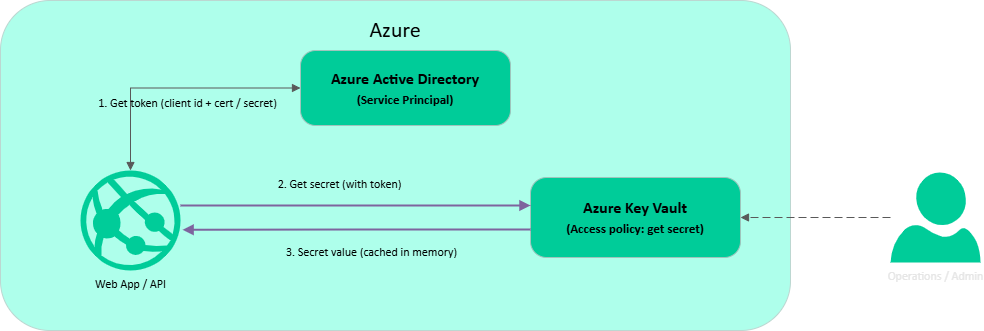
The flow highlighted in purple is the actual secret retrieval. Before that, the application gets an access token from Azure AD using its own identity (client id with a certificate or client secret). Key Vault validates the token and the access policy, and returns the secret value.
Why Key Vault is important?
In order to remove the secrets from source code and config files, to control exactly which application can read which secret, to rotate the secrets from one place and to have an audit trail of every access, a central secret store like Key Vault is mandatory for cloud applications. It also separates the duties, the operations team manages the production secrets and the developers never need to see them.
Steps to Implement:
Follow the following instructions to create a Key Vault, store a secret and read it from an application. We use Azure PowerShell (AzureRM module) for the setup.
-
Login to your Azure Account and select the subscription.
Login-AzureRmAccount Get-AzureRmSubscription Select-AzureRmSubscription -SubscriptionId <azure subscription id> -
Create a resource group and a Key Vault. Replace the input place holders with actual values.
New-AzureRmResourceGroup -Name <resource group> -Location "North Europe" New-AzureRmKeyVault -VaultName <vault name> -ResourceGroupName <resource group> -Location "North Europe" -
Add a secret, for example the fund database connection string.
$secretValue = ConvertTo-SecureString "<connection string>" -AsPlainText -Force Set-AzureKeyVaultSecret -VaultName <vault name> -Name "FundDbConnection" -SecretValue $secretValue -
Just to pulse check, read the secret metadata back.
Get-AzureKeyVaultSecret -VaultName <vault name> -Name "FundDbConnection" -
Register the application in Azure AD and create a service principal. Note the Application (client) id.
$app = New-AzureRmADApplication -DisplayName "fund-reporting-api" -HomePage "https://fund-reporting-api" -IdentifierUris "https://fund-reporting-api" -Password "<client secret>"
New-AzureRmADServicePrincipal -ApplicationId $app.ApplicationId
Note: For a quick start, a client secret is fine, but for production, it is highly recommended to use a certificate credential (
-CertValue) and upload the certificate to the Web App, so no password is stored in the app settings. -
Give the application only the permission it needs, here only “get” on secrets.
Set-AzureRmKeyVaultAccessPolicy -VaultName <vault name> -ServicePrincipalName $app.ApplicationId -PermissionsToSecrets get -
Install the NuGet packages in the application.
Install-Package Microsoft.Azure.KeyVault Install-Package Microsoft.IdentityModel.Clients.ActiveDirectory -
Read the secret in the application. The client id and the vault URL are not secrets, they can stay in the app settings. The client secret (or certificate thumbprint) goes to the Azure Web App application settings, not to
web.configin source control.public class KeyVaultSecretProvider { private readonly KeyVaultClient _client; private readonly string _vaultUrl; private readonly ConcurrentDictionary<string, string> _cache = new ConcurrentDictionary<string, string>(); public KeyVaultSecretProvider(string vaultUrl, string clientId, string clientSecret) { _vaultUrl = vaultUrl; _client = new KeyVaultClient(async (authority, resource, scope) => { var context = new AuthenticationContext(authority); var result = await context.AcquireTokenAsync(resource, new ClientCredential(clientId, clientSecret)); return result.AccessToken; }); } public async Task<string> GetSecretAsync(string name) { string value; if (_cache.TryGetValue(name, out value)) return value; var secret = await _client.GetSecretAsync(_vaultUrl, name); _cache[name] = secret.Value; return secret.Value; } } -
Use it at the application start up to build the connection string.
var provider = new KeyVaultSecretProvider(
    ConfigurationManager.AppSettings["KeyVault:Url"],
    ConfigurationManager.AppSettings["KeyVault:ClientId"],
    ConfigurationManager.AppSettings["KeyVault:ClientSecret"]);

var fundDbConnection = await provider.GetSecretAsync("FundDbConnection");
Info: For ASP.NET Core applications, the
Microsoft.Extensions.Configuration.AzureKeyVaultpackage adds Key Vault as a configuration provider, so the secrets appear inIConfigurationlike any other setting. -
Enable the diagnostic logging for the vault to a storage account, so every access is recorded.
$vault = Get-AzureRmKeyVault -VaultName <vault name>
$storage = Get-AzureRmStorageAccount -ResourceGroupName <resource group> -Name <storage account>
Set-AzureRmDiagnosticSetting -ResourceId $vault.ResourceId -StorageAccountId $storage.Id -Enabled $true -Categories AuditEvent
Rotating a secret
When a secret needs to be rotated, add a new version with the same name. The application picks it up on the next read (or on restart, when the value is cached). Older versions are still available by version id, which helps when we need to roll back.
Set-AzureKeyVaultSecret -VaultName <vault name> -Name "FundDbConnection" -SecretValue $newSecretValueMust Do and Don’ts
- Must Do: Use one vault per application per environment (ex:
fund-api-dev,fund-api-prod), so the dev team cannot read production secrets. - Must Do: Grant only the permissions needed, “get” for applications, “set/list/delete” only for the operations team.
- Must Do: Cache the secrets, Key Vault has throttling limits and every call adds latency.
- Should: Prefer certificate credentials over client secrets for the application identity.
- Don’t: log the secret values, even in debug logs.
- Don’t: store large configuration in Key Vault, use it only for secrets.
Wrap up
In this article, we have looked at the challenges with secrets in config files, what is Azure Key Vault, how it works with Azure AD and the step by step instructions to create a vault, store a secret, read it from an application and rotate it. I appreciate your time and efforts to read this article. In the next article, I will walk you through how to create your first Azure Function with timer and HTTP triggers.
Related Posts
What is OAuth 2.0 and OpenID Connect?
OAuth 2.0 and OpenID Connect explained through roles, grant types, access tokens, authorization versus authentication, and the purpose of an id_token.
How to configure deployment slots in Azure App Service?
Azure App Service deployment slots explained through staging, slot settings, validation, and swapping an ASP.NET MVC release into production safely.
How to create Azure resources with ARM templates?
Azure Resource Manager templates explained through infrastructure drift, template structure, parameters, dependencies, and AzureRM deployment commands for repeatable environments and deployments.