How to run containers in Azure Container Instances?
Azure Container Instances provide fast, per-second container compute, and this guide covers images, resource groups, networking, environment variables, ports and cleanup.
How to run containers in Azure Container Instances?
Running a container on a virtual machine is giving us flexibility, but we still need to provision and maintain the machine before the application can start. For a short-lived job or a small API, this infrastructure is adding operational work which is not part of the business requirement. Azure Container Instances (ACI) is providing a way to run a container without managing the underlying virtual machine.
In this article, we are going to see how to create, inspect, log and delete a Linux container in ACI with Azure CLI 2.0. We will also look at a private registry, environment variables and a multi-container group defined with an ARM template.
TL;DR Summary
- ACI runs containers on demand with per-second billing and no VM cluster to manage.
- The service is in preview, available in limited regions, with Linux containers and Windows containers in preview.
- Use
az container create,show,logsanddeletefor a basic container lifecycle. - Pass private registry credentials and environment variables explicitly, and protect them in command history.
- Use an ARM template for a multi-container group; the preview flow is not using YAML files.
- ACI Connector for Kubernetes is experimental, so evaluate it separately from the simple ACI command flow.
Challenges
Paying for idle infrastructure
A small fund API or report worker may run only for part of the day. A dedicated VM is still running when the workload is idle, and the team is managing patches, ports and operating-system settings.
Basic container operations
Starting the container is only one step. We also need to see its state, read startup logs and remove it when the experiment is complete. Without a consistent command flow, resources are being left behind and cost is becoming difficult to understand.
Registry and configuration
The image may be private and the process may require a connection string or feature setting. Credentials and environment variables must be passed carefully, otherwise the container will not start or secrets may be exposed in scripts.
What is Azure Container Instances?
Azure Container Instances is a preview Azure service for running containers without provisioning or managing virtual machines.
In simple terms, ACI is a short path from a container image to a running container instance. It is useful for burst workloads, development, jobs and simple services, while a full orchestrator is more suitable for complex service scheduling and cluster operations.
The following diagram depicts an ACI container group and its external access.
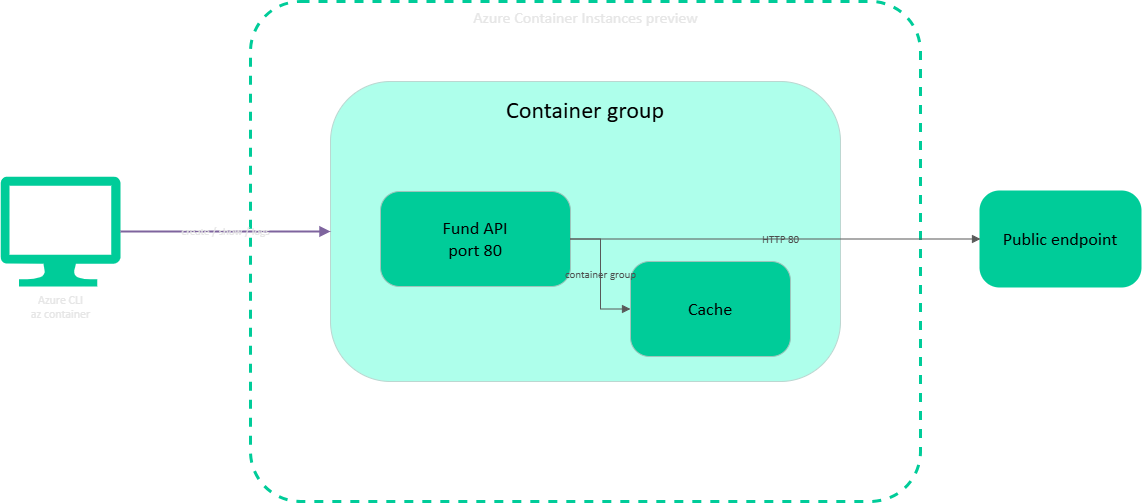
The purple path is the basic command flow from the Azure CLI to the running container group and its public HTTP endpoint.
Why ACI is important?
ACI is important because it is removing VM management from a small container workload. Provisioning is quick, billing is per second and the container is isolated by the platform. This can make a short-lived fund calculation or test environment easier to operate.
ACI is not automatically the right choice for every workload. It has preview limitations, resource limits and fewer orchestration features than a cluster. We should select it based on the workload and the operational controls required.
Option comparison
| Approach | Pros | Cons |
|---|---|---|
| Azure Container Instances | + No VM management + Per-second billing + Fast container start | − Preview service − Limited regions and orchestration |
| Container on a VM / cluster | + More control and mature scheduling + Suitable for long-running services | − Pay and manage underlying nodes − More platform operations |
Steps to Implement:
Follow the following instructions to run a container in ACI,
Install the CLI and select a subscription
-
Install Azure CLI 2.0 and sign in,
az login az account list -o table az account set --subscription <subscription-id> -
Create a resource group in a supported region,
az group create --name <resource-group> --location <region>
Replace the input place holders with actual values. ACI preview availability is limited by region, check the Azure portal or CLI response before choosing <region>.
Create a Linux container
-
Create a public container with one CPU and 1.5 GB memory,
az container create \
  --resource-group <resource-group> \
  --name <container-name> \
  --image microsoft/aci-helloworld \
  --ip-address public \
  --ports 80 \
  --cpu 1 \
  --memory 1.5
Note: ACI is in preview, and Linux containers are supported while Windows containers are also in preview. Check region and image support before using the command in a delivery pipeline.
Inspect the container
-
Read the full resource details,
az container show \ --resource-group <resource-group> \ --name <container-name> -
Read the container logs,
az container logs \
  --resource-group <resource-group> \
  --name <container-name>
The show output provides the provisioning state and IP address. The logs command is useful for startup errors, but send long-term application logs to the normal logging destination.
Use a private registry
-
Create a container from a private registry image,
az container create \
  --resource-group <resource-group> \
  --name <container-name> \
  --image <registry-login-server>/<image>:<tag> \
  --registry-login-server <registry-login-server> \
  --registry-username <registry-username> \
  --registry-password <registry-password> \
  --ip-address public \
  --ports 80 \
  --cpu 1 \
  --memory 1.5
Keep the password out of a committed script and use a protected command environment. The CLI option is convenient for a demonstration, but a production pipeline must protect the value.
Pass environment variables
-
Add non-secret application settings,
az container create \
  --resource-group <resource-group> \
  --name <container-name> \
  --image <registry-login-server>/<image>:<tag> \
  --environment-variables \
    ASPNETCORE_ENVIRONMENT=Production \
    FundApi__PriceEndpoint=https://prices.example.com
Do not put passwords, tokens or connection strings in an unprotected command line. Use a secret mechanism appropriate to the deployment process.
Deploy a multi-container group
-
Define containers in an ARM template,
{
  "$schema": "https://schema.management.azure.com/schemas/2015-01-01/deploymentTemplate.json#",
  "contentVersion": "1.0.0.0",
  "resources": [
    {
      "name": "<container-group-name>",
      "type": "Microsoft.ContainerInstance/containerGroups",
      "apiVersion": "2017-08-01",
      "location": "<region>",
      "properties": {
        "containers": [
          {
            "name": "fund-api",
            "properties": {
              "image": "<registry-login-server>/fund-api:<tag>",
              "ports": [{ "port": 80 }],
              "resources": { "requests": { "cpu": 1, "memoryInGB": 1.5 } }
            }
          },
          {
            "name": "cache",
            "properties": {
              "image": "redis",
              "resources": { "requests": { "cpu": 1, "memoryInGB": 1 } }
            }
          }
        ],
        "osType": "Linux",
        "ipAddress": { "type": "Public", "ports": [{ "protocol": "TCP", "port": 80 }] }
      }
    }
  ]
}
Info: Multi-container groups in this preview flow are defined with ARM templates, not YAML files.
Pulse check and delete
-
Check the public endpoint with a browser or
curl. -
Delete the instance when the test is complete,
az container delete \
  --resource-group <resource-group> \
  --name <container-name>
We will see an example of using ACI with a container workload and a Kubernetes connector in an upcoming article. The ACI Connector for Kubernetes is experimental, so do not treat it as the same thing as a managed cluster.
Must Do / Should / Don’t
Must Do
- Must check preview region and operating-system support.
- Must inspect provisioning state and logs after creating the container.
- Must protect registry passwords and environment variables.
- Must delete temporary instances and resource groups when they are no longer required.
Should
- Should use ARM templates for repeatable multi-container groups.
- Should select ACI for simple or burst workloads with clear resource limits.
- Should send application logs to a central destination.
Don’t
- Don’t assume ACI provides a complete cluster scheduler.
- Don’t put a password in source control or a shared shell history.
- Don’t use an experimental Kubernetes connector without understanding its limits.
Wrap up
In this article, we have looked at the ACI preview service, the CLI container lifecycle, private registries, environment variables and ARM templates for multi-container groups.
I really appreciate that you took the time to read this article. In the next article, I will walk you through how to deploy an application to Kubernetes with Helm charts.
Related Posts
Cloud cost optimization - right-sizing, reserved capacity and auto-shutdown
Azure cloud cost optimisation combines right-sizing, reserved capacity, auto-shutdown, autoscale, tagging, cleanup, Advisor metrics and showback into a repeatable loop.
Containers vs PaaS vs Serverless - which one for which workload?
VMs, PaaS, containers and serverless offer different control and operational trade-offs, with workload context guiding the right Azure hosting model.
Cosmos DB vs Azure SQL Database - choosing the right data store
Cosmos DB and Azure SQL Database are compared across data models, consistency, transactions, partitioning, scale and operational fit for a fund workload.