How to deploy an ASP.NET MVC application to Azure App Service?
Deploying an ASP.NET MVC 5 application to Azure App Service, from creating the web app and publishing with Visual Studio through validation and configuration.
How to deploy an ASP.NET MVC application to Azure App Service?
Few years ago, deploying an application was mostly copying binaries to a server, and it was working until the environment was having more than one instance. We need a repeatable way to package the application, configure the environment and validate that the application is available for our customers. Otherwise, a small manual mistake will become a production issue and the team will be taking reactive actions.
Azure App Service provides a managed hosting platform for ASP.NET MVC applications. In this article, we are going to see how to prepare an ASP.NET MVC 5 application and deploy it to an Azure App Service web app using Visual Studio 2015 and a publish profile.
We can deploy an ASP.NET MVC application in two common ways:
| Approach | Pros | Cons |
|---|---|---|
| Visual Studio publish profile | + Quick for a first deployment<br>+ Shows the publish settings clearly | − Depends on a developer action<br>− Easier to vary between releases |
| Visual Studio Online build with deployment task | + Repeatable and reviewable<br>+ Can run tests before deployment | − Requires build definition setup<br>− Takes more initial effort |
TL;DR Summary
- Azure App Service hosts ASP.NET MVC applications without managing the underlying server.
- The application must be tested locally before publishing, otherwise deployment only moves the problem to another environment.
- A Resource Group keeps the related Azure resources together.
- A publish profile contains the deployment connection information and must be protected.
- App settings belong to the Azure environment, not in source control.
- We should perform a pulse check after deployment and monitor the first requests.
Challenges
Manual server management
When we host an application on a server managed by ourselves, we need to look after IIS, operating system patches, certificates, disk space and availability. If one of these activities is missed, users can experience errors before the operations team knows about it. App Service removes much of this infrastructure work so the team can focus on the application and its business behaviour.
Configuration differences
The application may work in a developer machine because connection strings and application settings are available locally. When the same values are not configured in the hosted environment, the application will fail while starting or while processing a request. It is important to keep environment values separate, because test and production should not share the same database.
Deployment confidence
A deployment is not complete when the publish command is successful. We need to validate the web site, inspect the application logs and exercise an important business flow. A funds application, for example, should not only display its home page, it should also be able to read a fund and its units from the configured data source.
What is Azure App Service?
Azure App Service is a managed platform for hosting web applications, including ASP.NET applications.
In simple terms, App Service gives us a web site endpoint and the platform services required to run an application, while Azure manages the operating system and web server infrastructure. We still remain responsible for our code, configuration, security and data.
Why deployment process is important?
A consistent deployment process reduces the chance of configuration drift and makes the release easier to repeat. It also gives the team a common way to roll back or publish a known version. Otherwise, every release depends on the memory of one person and the business will be waiting when that person is unavailable.
How to deploy the application?
The following diagram depicts the flow from Visual Studio to Azure App Service,
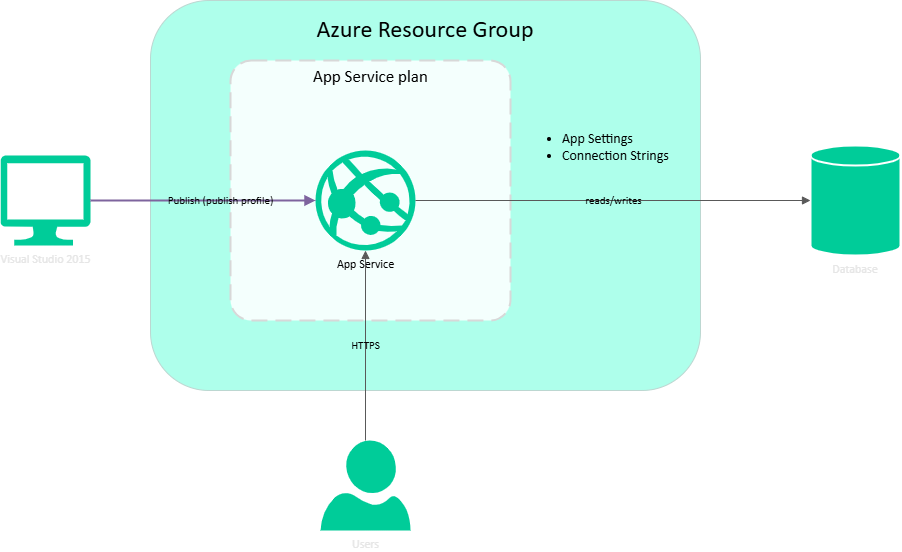
Option1: Visual Studio publish profile
Steps to Implement:
Follow the following instructions to deploy an ASP.NET MVC 5 application.
-
Create an ASP.NET MVC 5 application in Visual Studio 2015 and run it locally.
File > New > Project > Templates > Visual C# > Web > ASP.NET Web Application > MVC -
Configure the local connection string and verify that the application can read its required data.
-
Build the solution in Release configuration.
Build > Configuration Manager > Active solution configuration: Release -
Login to the Azure portal and create a Resource Group for the application.
Resource Group: <Resource Group name> Location: <Azure region> -
Create an App Service web app inside the Resource Group.
App name: <globally unique app name> App Service plan: <App Service plan name> -
Open the web app in Visual Studio and select the Publish option.
Solution Explorer > right-click project > Publish -
Select Microsoft Azure App Service and choose the existing web app.
-
Download the publish profile and import it into the Publish Web dialog.
Note: A publish profile contains deployment credentials. Store it securely and do not commit it to source control.
-
Review the Connection String and App Settings values before publishing, and replace the input place holders with actual values.
-
Publish the application using the Release configuration.
Publish -
Just to pulse check, open the web app URL in a browser and request the health or home page.
https://<app name>.azurewebsites.net/ -
Check the application log and test one real business flow, such as searching a fund and opening its units.
Info: For a quick start, Visual Studio publishing is fine, but for a mature team it is highly recommended to move the same steps into Visual Studio Online build so that the release is repeatable.
Option2: Visual Studio Online build with deployment task
For a team release, use the build definition to restore packages, compile Release output, run tests and publish the artifact. The “Azure Web App Deployment” task at the end of the same build definition can deploy that package to the App Service web app, so the same package is used after validation. We will discuss the continuous integration build setup in an upcoming article; otherwise a manual publish can slowly become the hidden release process.
Configuration and security considerations
Use App Service Application settings for values that change between environments. ASP.NET reads these values from the web application environment, so the source code can remain the same while test and production have different settings. Keep connection strings in the Connection strings section and use encryption in transit for the database connection.
Do not place passwords or storage keys in web.config committed to the repository. If a value is required by the application, configure it at deployment time and limit access to the people and service accounts that need it. This is important because configuration files are often copied into build artifacts.
Deployment checklist
Find below the quick summary of the deployment checks which we normally follow,
- Must Do: Build the Release configuration and make sure the same artifact is being deployed, otherwise a developer build can be different from the tested build.
- Must Do: Keep connection strings and application settings in the App Service configuration, because test and production are having different dependencies.
- Must Do: Protect the publish profile and remove it from the working folder after importing it.
- Don’t: Put an access key or password in source control, even when the repository is private.
- Be mindful:
web.configtransforms are useful for build-time changes, but App Service Application Settings override values at runtime.
After publishing, open the application home page, login with a test account and exercise one business flow. For example, in a fund application search for a fund and open its unit details. It is important to check one dependency-backed flow, because a green publish result only tells us that the package was transferred.
If the site is not responding, first check the App Service deployment log and application log, then verify the startup configuration and connection string. We should not immediately publish the same package again, because repeated deployment is a reactive action and it is hiding the actual problem.
Deployment through a release process
For a matured team, store the publish profile as a protected build variable or use the “Azure Web App Deployment” task in Visual Studio Online build. The build should restore packages, compile the application, run tests and publish one artifact. The deployment task should then deploy that artifact to the selected web app, so the person who is clicking Publish is not becoming a single point of failure.
The trade-off is simple. Visual Studio publishing is quick for first deployment and troubleshooting, while a build release takes more setup but gives repeatability. In our case we should start with the publish profile for an early spike, and move to the build with deployment task before the application is serving regular customer traffic.
Wrap up
In this article, we have looked at preparing an ASP.NET MVC 5 application, creating an Azure App Service web app, publishing from Visual Studio 2015, validating the deployment and keeping configuration outside the package. I really appreciate that you took the time to read this article. In the next article, I will walk you through deployment slots in Azure App Service, which helps us test and swap releases with less risk.
Related Posts
How to configure deployment slots in Azure App Service?
Azure App Service deployment slots explained through staging, slot settings, validation, and swapping an ASP.NET MVC release into production safely.
Getting started with Docker - Part 1
Getting started with Docker through images, containers, Docker Toolbox, Docker Machine, host addresses, and basic Docker 1.x commands for practical first steps.
How to create Azure resources with ARM templates?
Azure Resource Manager templates explained through infrastructure drift, template structure, parameters, dependencies, and AzureRM deployment commands for repeatable environments and deployments.