How to create your first Azure Function?
Creating an Azure Function explained through preview-era triggers, bindings, hosting plans, timer and HTTP functions, deployment and retry-safe execution for practical guidance.
How to create your first Azure Function?
In every application, there are small jobs which don’t really belong to the main web application. Clean up the old report files every night, import the fund prices from a partner every 15 minutes, send a notification when a file is uploaded, expose a small endpoint for a partner to push data. Normally, we end up hosting these jobs in a Windows Service on a VM, a WebJob attached to a Web App, or worse, inside the web application itself with a background timer. All of them need a server to manage, deploy and monitor, just for a few lines of code.
Azure Functions was announced in preview in March 2016 and it is still in preview. In the previous article, we discussed how to store application secrets in Azure Key Vault. In this article, we are going to see what is Azure Functions, the key concepts, and how to create your first functions with a timer trigger and an HTTP trigger from the Azure portal.
TL;DR Summary
- Azure Functions is an event driven, serverless compute service to run small pieces of code in the cloud.
- A function is started by a trigger (timer, HTTP, queue, blob, Service Bus and more).
- Bindings connect the function to input and output data without writing plumbing code.
- In the Consumption plan, we pay only for the executions and the time they run, and the platform scales automatically.
- C# functions are written as C# script (
run.csx) and configured withfunction.json. - Timer triggers use a six field CRON expression with seconds.
- Keep the functions small, stateless and idempotent.
Challenges
Servers for small jobs
A Windows Service which runs one job every 15 minutes still needs a VM, patching, monitoring and a deployment process. The cost and effort are far bigger than the code.
Background work inside the web application
When a timer runs inside the web application, it stops when the app pool recycles, runs twice when we scale out to two instances and competes with user requests for CPU. It is a hidden reliability problem.
Paying for idle time
A job which runs for 10 seconds every hour is idle more than 99% of the time, but the VM or App Service plan is paid for 24 hours a day.
What is Azure Functions?
Azure Functions is a serverless compute service that runs code on demand in response to events, without the need to provision or manage infrastructure, and it is built on top of the Azure App Service and WebJobs SDK.
In simple terms, we write only the function, Azure takes care of when to run it, where to run it and how many copies to run. It is like a taxi instead of owning a car, we pay for the trip, not for the parking.
The key concepts are,
- Function App - the container for one or more functions, it shares the configuration, the hosting plan and the deployment.
- Trigger - the event which starts the function, every function has exactly one trigger.
- Bindings - declarative connections to data (input and output), ex: read a blob, write a queue message, return an HTTP response.
- Hosting plan - Consumption plan (pay per execution, automatic scale) or App Service plan (run on dedicated instances we already pay for).
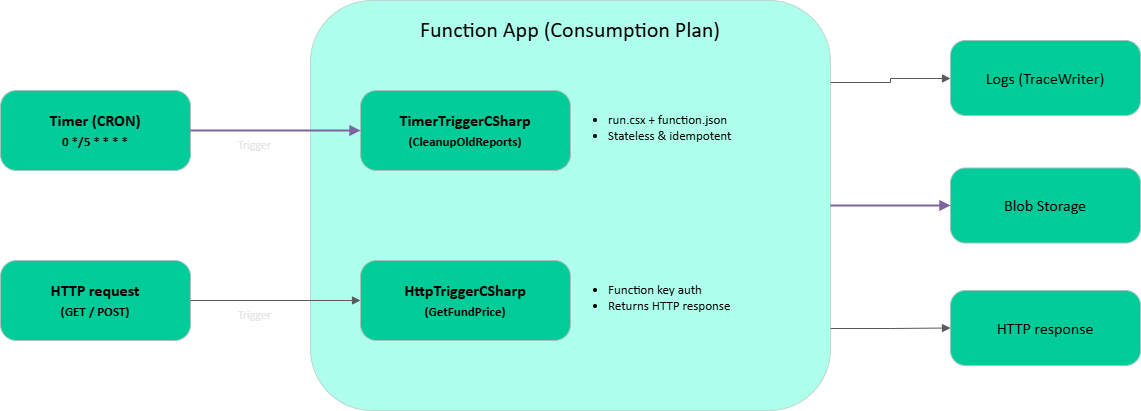
The following diagram depicts the two functions we are going to create.
Why Azure Functions is important?
In order to run small, event driven jobs without managing servers, to pay only for what we use and to scale automatically with the load, Azure Functions is a good fit. It also keeps these jobs out of our main web applications, so a slow import doesn’t affect the response time of our users.
Steps to Implement:
Follow the following instructions to create a Function App and your first two functions from the Azure portal.
Create the Function App
- Login to the Azure portal.
- Click “New” → “Compute” → “Function App”.
- Enter the app name, select the subscription, resource group, the hosting plan “Consumption Plan” and the location. Replace the input place holders with actual values.
- Select or create a storage account. Functions use it for triggers, logs and to manage the state.
- Click “Create” and wait for the deployment, then open the Function App.
Create a timer triggered function
-
Click “New Function”, select the “TimerTrigger-CSharp” template.
-
Give the function a name, ex:
CleanupOldReports, and set the schedule to run every 5 minutes for testing.0 */5 * * * *Note: The CRON expression has six fields,
{second} {minute} {hour} {day} {month} {day-of-week}. It is different from the classic five field CRON, so0 0 2 * * *means every day at 02:00:00 (UTC). -
Replace the code in
run.csx.using System; public static void Run(TimerInfo myTimer, TraceWriter log) { log.Info($"Cleanup started at: {DateTime.UtcNow}"); // delete reports older than 30 days from blob storage // keep this idempotent, it may run again after a failure log.Info("Cleanup completed."); } -
Look at the
function.json(the “Integrate” tab shows the same in a form).{ "bindings": [ { "name": "myTimer", "type": "timerTrigger", "direction": "in", "schedule": "0 */5 * * * *" } ], "disabled": false } -
Click “Save and run”. Just to pulse check, watch the “Logs” panel at the bottom, you should see the log messages, and again after 5 minutes.
Create an HTTP triggered function
-
Click “New Function”, select the “HttpTrigger-CSharp” template and name it
GetFundStatus. -
Set the authorization level to “Function”, so the caller needs a function key.
-
Replace the code in
run.csx.using System.Net; public static async Task<HttpResponseMessage> Run(HttpRequestMessage req, TraceWriter log) { string isin = req.GetQueryNameValuePairs() .FirstOrDefault(q => string.Compare(q.Key, "isin", true) == 0) .Value; if (string.IsNullOrEmpty(isin)) return req.CreateResponse(HttpStatusCode.BadRequest, "Please pass an isin on the query string"); log.Info($"Status requested for {isin}"); return req.CreateResponse(HttpStatusCode.OK, new { isin = isin, status = "Open" }); } -
Click “Get function URL” and copy it. It contains the function key in the
codequery parameter. -
Just to pulse check, call the function.
curl "https://<function app name>.azurewebsites.net/api/GetFundStatus?code=<function key>&isin=LU0000000001"
Use application settings
-
Open “Function app settings” → “Configure app settings” and add the settings like connection strings there, not in the code.
-
Read them in the function with
Environment.GetEnvironmentVariableorConfigurationManager.AppSettings.var storageConnection = Environment.GetEnvironmentVariable("ReportsStorage");
Things to keep in mind
- In the Consumption plan, a function has a maximum execution time (5 minutes by default). Long running jobs must be split into smaller steps, for example with a queue between them.
- The first call after an idle period can be slow (cold start), because the platform needs to load the function app. For latency sensitive APIs, an App Service plan with “Always On” is a better choice.
- A function can run more than once for the same event (retries, scale out). Write the functions idempotent, we will discuss the patterns for idempotency in REST APIs in an upcoming article.
- Editing code in the portal is fine for learning, but for production, keep the code in source control and deploy with continuous deployment from VSTS, GitHub or Bitbucket.
Info: The Azure Functions CLI is in preview and there is no Visual Studio tooling yet. Until they are mature, we keep the
run.csxandfunction.jsonfiles in a Git repository and use the Function App’s continuous deployment option.
Must Do and Don’ts
- Must Do: Keep the secrets in app settings or Key Vault, not in
run.csx. - Must Do: Use “Function” or “Admin” authorization level for HTTP functions which are not public.
- Must Do: Monitor the executions and failures (the “Monitor” tab or Application Insights).
- Should: One function, one responsibility.
- Don’t: keep state in static variables between executions, the instance can be recycled any time.
- Don’t: use a Function for long running CPU heavy work in the Consumption plan.
Wrap up
In this article, we have looked at the challenges of hosting small background jobs, what is Azure Functions, the key concepts of triggers, bindings and hosting plans, and the step by step instructions to create timer and HTTP triggered functions. Thanks for reading this article and I hope this article provided you some insights into getting started with Azure Functions. In the next article, I will walk you through how to automate releases with VSTS Release Management.
Related Posts
How to deploy an ASP.NET MVC application to Azure App Service?
Deploying an ASP.NET MVC 5 application to Azure App Service, from creating the web app and publishing with Visual Studio through validation and configuration.
How to send and receive messages with Azure Service Bus queues?
Azure Service Bus queues explained through asynchronous work, queue creation, BrokeredMessage handling, workers, completion, and dead-letter messages for reliable background work.
How to store files in Azure Blob Storage from ASP.NET?
Storing files in Azure Blob Storage from ASP.NET, including containers, validation, uploads, private file serving, and separating file metadata.